
Technical data




Booting and Resetting nPartitions
Boot Device Searching and Finding
HP System Partitions Guide: Administration for nPartitions, rev 5.1
202
Boot Device Searching and Finding
You can search for and find bootable devices for an nPartition by using
the BCH interface’s SEARCH command. This command searches for and
reports all bootable devices connected to any of the nPartition’s currently
active cells.
NOTE You cannot access any I/O connected to an nPartition’s inactive cells
(cells not being used for the current nPartition boot) or cells not assigned
to the local nPartition.
As a consequence, the BCH SEARCH command does not report any devices
connected to cells that are not currently assigned and active in the local
nPartition.
Finding Bootable Devices [BCH]
This procedure (BCH Main menu, SEARCH command) finds and lists the
bootable devices that are available to an nPartition.
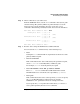
Step 1. Login to the server complex’s service processor (GSP or MP) and access
the nPartition’s console.
From the nPartition console you access the nPartition’s BCH interface to
search for bootable devices.
If the nPartition is not at the BCH interface you must either boot the
nPartition or shut down HP-UX to return to the BCH interface.
Step 2. From the BCH interface’s Main menu, issue the SEARCH command to find
and list bootable devices in the nPartition.
When accessing the nPartition’s BCH interface, if you are not at the BCH
Main menu then enter MA to return to the Main menu.
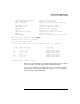
The SEARCH command reports all potential boot devices it locates.
---- Main Menu ---------------------------------------------------------------
Command Description
------- -----------
BOot [PRI|HAA|ALT|<path>] Boot from specified path