
Technical data






Managing nPartitions
Assigning (Adding) Cells to an nPartition
HP System Partitions Guide: Administration for nPartitions, rev 5.1
272
Step 4. Select the cells that you want to add to the nPartition from the Available
Cells list, then click the Add button to add them to the nPartition’s cell
list.
If adding multiple cells, you can select multiple cells by pressing the
Control key while clicking on the cells.
Adding the cell(s) to the nPartition should create a configuration that
adheres to the hardware requirements and performance guidelines.
Step 5. After you add the new cells to the nPartition’s cell list, click the OK
button.
The cells are not actually assigned to the nPartition until after the next
step.
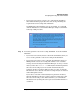
Step 6. Review the information shown in the Notes and Warnings, the Summary of
Changes
, and the HA Checks tabs.
Partition Manager generates this information when it checks details of
the new nPartition configuration, such as cell compatibility and various
high-availability guidelines.
To cancel all nPartition changes, click the Cancel button in the Notes and
Warnings window and then click Cancel in the Modify Partition window.
To proceed with adding the cell(s) to the nPartition, click OK.
Step 7. Once Partition Manager confirms that the “partition has been
successfully modified” click the OK button.
The cells are assigned to the nPartition after clicking OK in the previous
step. However, any cells you have added to an active nPartition will
remain inactive until you perform a reboot for reconfig of the modified
nPartition.
Step 8. As needed, perform a reboot for reconfig (shutdown -R) of the modified
nPartition.
See the Reboot for Reconfig Guidelines for Adding Cells on page 269 for
details on when to perform a reboot for reconfig.