
Technical data



Listing and Managing Server Hardware
Turning Attention Indicators (LEDs) On and Off
HP System Partitions Guide: Administration for nPartitions, rev 5.1
329
Turning Attention LEDs On and Off [Partition Manager]
This procedure (Cell —> Light Cell LED menu, the I/O —> Light I/O Chassis
LED
menu, or the I/O —> Light Chassis and Slot LEDs menu) manages a
hardware component’s attention indicator by blinking it and turning it
off from Partition Manager.
Step 1. Run Partition Manager (/opt/parmgr/bin/parmgr) or access it from
SAM or a Web browser.
Step 2. In Partition Manager’s primary window, select the nPartition to which
the hardware component (cell, I/O chassis, or PCI slot) is assigned, or
select Available Resources if the component is not assigned.
Step 3. Select the hardware component whose attention indicator you want to
blink, then select the appropriate menu item to blink the LED.
You can manage LEDs for the following hardware components:
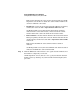
• Cells—Select the cell in Partition Manager’s primary window, then
select the Cell —> Light Cell LED menu item.
# fruled -f -C
# fruled -f -I
# fruled -o -c0 -c2 -c4
# fruled -o -i0/0/1 -i0/0/3
# fruled -o -b0
# fruled -f -C
# fruled -f -I
# fruled -f -b0
# rad -f attention 0-0-1-2
# rad -f off 0-0-1-2
#
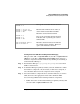
Turn off all cell and I/O chassis attention
Blink attention indicators for cells 0, 2,
and 4 and I/O chassis 0/0/1 and 0/0/3.
Blink the cabinet number LCD for
Turn off all cell and I/O chassis attention
indicators and stop blinking the cabinet
number LED.
Blink the attention indicator for PCI slot
2 in cabinet 0, bay 0, chassis 1. Then turn
off the same PCI slot’s attention