
Technical data






Listing and Managing Server Hardware
Checking for Processor Failures
HP System Partitions Guide: Administration for nPartitions, rev 5.1
366
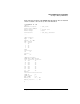
Core Cell Capable : no
Firmware Revision : 32.5
Failure Usage : activate
Use On Next Boot : yes
Partition Number : 0
Partition Name : betty
[CPU Details]
Type : 23664
Speed : 552 MHz
CPU Status
=== ======
0 ok
1 failed
2 ok
3 failed
CPUs
===========
OK : 2
Failed : 2
Max : 4
....
Checking Processor Status [Partition Manager]
This procedure (Cell —> Show Cell Details menu, CPUs/Memory tab) lists
processor details and any failures using Partition Manager.
Step 1. Run Partition Manager (/opt/parmgr/bin/parmgr) or access it from
SAM or a Web browser.
Step 2. On the left of the primary window, select the nPartition to which the cell
is assigned, or select Available Resources if the cell is unassigned.
Step 3. On the right of the primary window, select the cell whose processor
details you want to list, then select the Cell —> Show Cell Details menu
item.
Step 4. Click the CPUs/Memory tab to display the processors installed in the
selected cell and list the status for each processor.