
Laptop User Manual
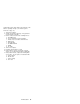
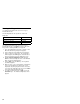
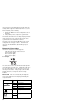
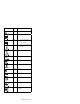
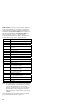
Table Of Contents
- Read This First
- Product Overview
- Checkout Guide
- Optional Device Checkout
- Power Management Features
- Symptom-to-FRU Index
- Running the Diagnostics
- Related Service Procedures
- FRU Removals and Replacements
- Important Notice
- FRU Service Procedures
- Removal Reference
- 1010 DIMM Card and Backup Battery
- 1020 Battery Pack
- 1030 Hard Disk Drive
- 1040 Keyboard Unit
- 1050 Keyboard and Speakers
- 1060 Diskette Drive Assembly or CD-ROM Assembly
- 1070 Diskette Drive and CD-ROM Drive
- 1080 LCD Unit
- 1090 Fan Assembly, CPU Card, and Thermal Rubber
- 1100 Upper Shield Case
- 1110 Box Speaker and Microphone
- 1120 DC/DC Card
- 1130 System Board and PC Card Slot
- 1140 Battery Pack Latch
- 2010 LCD Front Cover
- 2020 LCD Inverter Card
- 2030 LCD Panel
- 2040 LCD Misc. Parts
- 2050 LCD Cable
- 3010 ThinkPad Port Replicator with Advanced EtherJet Feature
- Locations
- Parts List
- Notices
8. Click on a device to test, or click on Test All to test
all devices.
Click on Looptest to run the tests in a repeated loop.
The loop option menu appears. Click on a device; a
mark appears beside the selected device. Repeat
this step to select multiple devices. Click on OK to
start the diagnostic loop. If no device is selected, all
devices tests are looped.
9. To exit the loop, keep pressing Ctrl+Pause. A beep
sounds to notify that exit interrupt is sensed by the
test program. Press Esc to exit from the loop test.
PC Card (PCMCIA) Slots Test
The green LED on the PC test card (P/N 35G4703) turns
on when the PC Card (PCMCIA) slot test is running. If the
LED does not turn on, check that the card is installed
correctly by reseating it. If the LED still does not turn on
after the card is reseated, try using another slot for the
test. If the LED still does not turn on and the test fails,
replace the FRU shown by the diagnostic error code.
Universal Serial Bus (USB) Test
At the advanced diagnostic test menu, connect the USB
parallel test cable (P/N 05K2580) to the computer. Click
on the USB icon to run the test. Follow the instructions on
the screen. OK appears if the test passes and three lines
of error codes appear if the test fails. The defective FRU
must be the DC/DC card or the system board.
Use cable number 2 for an external USB port on the port
replicator.
Displaying the Error Log
Diagnostic errors are printed on a printer that is attached
to the parallel port when the error is detected. The error is
also logged in the system memory.
Use the following procedures to display the errors:
1. Enter the advanced diagnostic test.
2. Press Ctrl+E.
3. The error log appears.
4. To exit the window, click on Exit or press Esc key.
The error log is not saved when the system power is
turned off.
Checking the Installed Devices List
If a device is installed but its icon appears in gray shade
rather than in dark shade on the basic diagnostics test
menu, the device is defective. Reseat the device
connectors. If the symptom remains, replace the device or
the system board. If needed, adjust the contrast control to
clearly distinguish the shades of the icon.
ThinkPad 380Z
35