
Configuration Manual User guide

1BChapter 2: Camera operation
20 TruVision IP Camera Configuration Manual
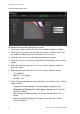
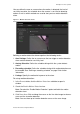
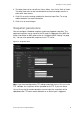
Figure 8: OSD settings menu
To position the date/time and name on screen:
1. In the Image folder, click the OSD Settings subfolder to open its window.
2. Check the Display Name box to display the camera’s name on screen. You
can modify the default name in the text box of Camera Name.
3. Check the Display Date box to display the date/time on screen.
4. Check the Display Week box to include the day of the week in the on-screen
display.
5. Select the time format from the Time format list box. Formats include: 24-
hour and 12-hour.
6. Select the date format from the Date format list box. Formats include:
• YYYY-MM-DD
• MM-DD-YYYY (Default)
• DD-MM-YYYY
7. Select a display mode for the camera from the Display Mode list box. Display
modes include:
• Transparent & Not flashing. The image appears through the text.
• Transparent & Flashing. The image appears through the text. The text
flashes on and off.
• Not transparent & Not flashing. The image is behind the text. This is
default.
• Not transparent & Flashing. The image is behind the text. The text
flashes on and off.