
Configuration Manual User guide

1BChapter 2: Camera operation
TruVision IP Camera Configuration Manual 25
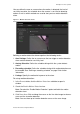
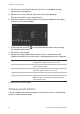
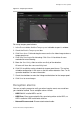
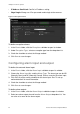
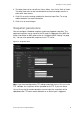
Figure 12: Tamper-proof menu
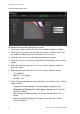
To set up tamper-proof alarms:
1. In the Events folder, click the Tamper-proof subfolder to open its window.
2. Check the Enable Tamper-proof box.
3. Click Draw Area. Click and drag the mouse on the live video image to draw a
tamper-proof area.
4. Click Stop Drawing to finish drawing. Click Clear All to delete all areas
marked and restart drawing.
5. Move the Sensitivity slider to set the sensitivity of the detection.
All areas will have the same sensitivity level.
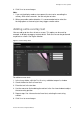
6. Click Edit to edit the arming schedule for tamper-proof alarms. The arming
schedule configuration is the same as that for motion detection. See “To set
up motion detection” for more information.
7. Check the checkbox to select the linkage method taken for the tamper-proof.
8. Click Save to save changes.
Exception alarms
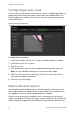
You can set up the camera to notify you when irregular events occur and how
you should be notified. These exception alarms include:
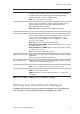
• HDD Full: All installed HDDs are full.
• HDD Error: Errors occurred while files were being written to the HDD, no
HDD installed or HDD had failed to initialize.
• Network Disconnected: Disconnected network cable.