
User Manual






Table Of Contents
- Allegro CE™ Owner's Manual
- Table of Contents
- Chapter 1 Introduction
- Chapter 2 Hardware Components
- Chapter 3 Memory Configuration and Data Storage Options
- Chapter 4 Windows CE Operating System
- Chapter 5 Technical Reference
- Chapter 6 Software Developer’s Guide for Allegro CE 3.0 and CE .NET
- Chapter 7 FCC Information, Warranty, and Software License Agreement
- Chapter 8 Expansion Pods
- Index
- Table of Contents
- Chapter 1 Introduction
- Chapter 2 Hardware Components
- Case Design
- Keyboard
- Display
- System Tray Indicators
- Batteries
- Main Power Source
- Setting Battery Charge
- Battery Life
- Recharging the NiMH Battery Pack
- Battery Gauging Explained
- Battery Status Icons
- When the Battery Voltage Drops
- Power Management Feature
- Changing NiMH Battery Pack
- Alkaline Battery Holder: Inserting Batteries and Usage Information
- Storing the Allegro CE During Inactive Periods
- NiMH Battery Pack's Useful Life
- Spare NiMH Battery Packs
- Short-Term Backup Supply
- Real Time Clock
- Main Power Source
- Communication Ports
- USB/Power Dock
- PC Cards
- Expansion Pods
- Chapter 3 Memory Configuration and Data Storage Options
- Chapter 4 Windows CE Operating System
- Windows CE Overview
- CE .NET Viewers
- ActiveSync Transfer
- Downloading ActiveSync from the Internet
- Installing ActiveSync
- Establishing a First Time ActiveSync Connection
- Establishing Additional ActiveSync Connections
- New Partnership Set Up
- USB MultiSync
- USB MultiSync Connections
- Transferring Files Between the Allegro CE and the Desktop PC
- Windows Explorer
- Storing Files and Programs
- System Save/Restore Utilities
- Application Command Bars
- PTab Spreadsheet Program
- Pocket Word/WordPad
- Internet Explorer and Inbox
- Calculator Program
- Terminal Program
- Chapter 5 Technical Reference
- Chapter 6 Software Developer’s Guide for Allegro CE 3.0 and CE .NET
- Chapter 7 FCC Information, Warranty, and Software License Agreement
- Chapter 8 Expansion Pods
- Index
Page 4-116 Windows CE
❏ Use the Formula Bar or Edit Cells on the Spot
❏ Show/Hide: Column and row titles, Gridlines, Zero values
❏ Sheets: New, Rename, Delete
❏ Sort (Ascending, Descending, up to three keys), Go to Cell, Find/
Replace
❏ Names (Define and Insert)
❏ Custom lists (e.g. Monday, Tuesday, Wednesday...)
❏ On-line help
❏ Password Protection
▲ ▲
▲ ▲
▲ Opening a PTab file
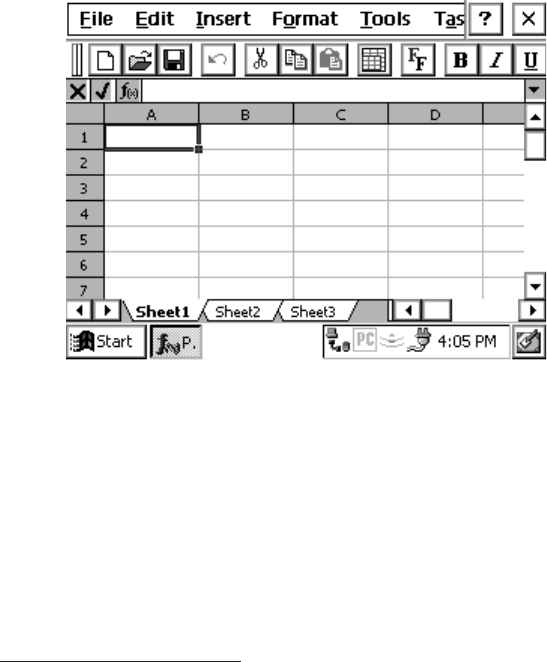
When you double-tap the PTab icon on the desktop, PTab opens and
automatically brings up a new workbook, as shown below. If you
would like to open an existing workbook choose File|Open and then
specify the location of the file you wish to open.
Adjusting the Viewing Area on the Display
A standard PTab screen is shown above with the menu bar, toolbar,
formula bar, and taskbar showing. You can view seven lines of the
spreadsheet on the screen.
When the menu bar, toolbar, formula bar, and taskbar are hidden, as
shown below, you can view eight lines of the spreadsheet. Refer to the
Application Command Bars section found earlier in this chapter for
details on how to adjust the viewing area.