
Cov lus qhia

Demo Kit Quick-Start Guide
Application Launch
Page 6 of 15
DevSuite Quick-Start Guide – Rev. 65 onsemi reserves the right to change products or specifications without notice.
© 2022 onsemi All rights reserved.
‡Products and specifications discussed herein are for evaluation and reference purposes only and are subject to change by onsemi
without notice. Products are only warranted by onsemi to meet onsemi’s production data sheet specifications.
Launching the DevSuite Application
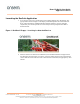
1. Go to the start menu, select “All Programs” then “Aptina Imaging” then “DevWareX.” The
popup window shown in Figure 1 will display as DevWareX probes for attached devices.
Note: as described in the “Additional Product Software Installers” section, if the files
required for your attached product are not found you will be prompted with a URL to
download them.
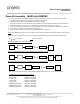
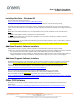
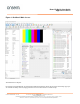
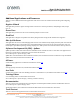
Figure 1: DevWareX Popup – Searching for Attached Devices
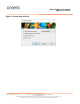
2. After the software has found an attached device, the DevWareX window will appear with
the dialog box shown in Figure 2 on page 3; select the settings shown. (Color/monochrome
sensors will also need to have the color or monochrome box checked, as appropriate.) Click
“Finish.”