
User's Manual
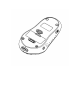
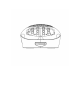


key located on the left side of the mouse keyboard,then press the “a” key and the asterisk “*”
sign positioned above appears on your screen.
You can also slide the power switch to use the audio to activate voice responses. The audio is
only available for alphabets. Each time you press an alphabet key ,a voice response will be heard.
There are two modes for audio responses, the low and high pitch audio.
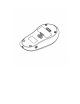
How to use the back panel of the mouse keyboard.
Press the Number lock key to activate operations in this area. All the number keys and the
special keys are now ready to be used. Turning off the number lock key will disable all
operations in the back panel.
Example:
To display the number "7 " , turn the number lock key on and press the corresponding key that
displays 7.
“7” will be displayed on your computer screen.
To use the top letters in this area. Please press the shift key and appropriate key as needed.
Example:
To display the “&” sign. Please press the number lock key to activate key. Hold down the shift
key and key that shows "7" . The & sign will appear on your screen.
Please note all the alphabets and special keys are all easily available on the front panel area of
the mouse keyboard.
Device Maintenance:
Proper maintenance of this device would ensure a longer life and reduce the chances of causing
any physical damage to your device and computer. Please follow the guidelines below;
キ2 Gently pull out the USB cable from the computer and Mouse Keyboard
キ3 Store your TF card with information in a safe place.
キ4 Always disconnect the mouse keyboard before cleaning.
キ5 Keep any form of liquids away from the Mouse Keyboard working area.
キ6 There are no user serviceable parts.