
Quick Start Manual





SmartMat Quick Start Manual
b. Set-up the WiFi connection via the recommended
internet browser and connect SmartMat to the Internet
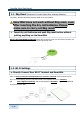
Input “192.168.4.1” into your browser, and the WiFi setting page will be displayed.
Input the SSID and Password, and then the light will blink green.
If the lamp turnes red, it indicates SmartMat is not connected to the internet.
Please confirm if SSID/PWD of WiFi is correct and whether Wi-Fi network is properly performed. After confirmation, see (1-
2) and follow the instruction. For the WiFi environment, please see (1-0) of this manual. If the Wi-Fi network is not solid
and SmartMat is not connected to the Internet, please follow (1-2b) nearby Wi-Fi rooter.
1-3. Prepare the Mat Management Software
Under the mat management software, you will be able to register/change the Measured Products, confirm
the residual battery and WiFi connection status, and set up the order/notification method. For the effective
usage of SmartMat, please fill in the accurate data based on the following instruction.
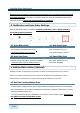
a: Client
b: Set the
c: Set
d:
e: Location
Measured
Alert/Order
Settings
Log-In
Parameters
Products
Settings
(Optional)
a. Client Log-In
Go to the login page for the mat administrator (https://app.smartmat.jp/login) and login using login ID and
password. [Note] If you purchase SmartMat from other distributors, you will need to create the login ID
and register serial ID of SmartMat via our registration page (https://app.smartmat.jp/register)
5 / 13