
User's Manual



Troubleshooting
OPERATION GUIDE 5-5
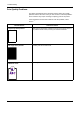
Vertical streaks Refresh drum.
Perform the following procedures on the operation panel and try
cleaning the drum surface using the printer's built-in cleaning
system.
1 Press and hold [GO] and [Cancel] for at least 3 seconds
when the Ready indicator lights up. All indicators flash slowly.
2 Press [Cancel]. The Attention, Data, and Ready indicators
flash slowly, and toner indicator (K) lights up.
3 Press [GO]. Drum refreshing starts. The toner indicators light
and flash in order of K, C, M, and Y.
Drum refleshing stops after approx.4 minutes, and the Ready
indicator lights up.
If the corrective action above will not solve the problem, contact
your service technician.
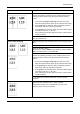
Faint or blurred printing Make sure the paper type setting is for the correct the paper being
used.
Try adjusting the color control settings using the printer driver.
Check the EcoPrint setting.
When the PDL setting is KPDL and the EcoPrint setting is 75% or
50% in the printer driver, turn EcoPrint Off.
Refresh drum.
Perform the following procedures on the operation panel and try
cleaning the drum surface using the printer's built-in cleaning
system.
1 Press and hold [GO] and [Cancel] for at least 3 seconds
when the Ready indicator lights up. All indicators flash slowly.
2 Press [Cancel]. The Attention, Data, and Ready indicators
flash slowly, and toner indicator (K) lights up.
3 Press [GO]. Drum refreshing starts. The toner indicators light
and flash in order of K, C, M, and Y.
Drum refleshing stops after approx.4 minutes, and the Ready
indicator lights up.
If color difference occurs in the printouts, contact a service
technician.
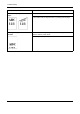
Gray background If the toner indicator (K/C/M/Y) flashes, install a new toner kit. To
replace the toner container, refer to
Toner Container
Replacement on page 4-3. If color difference occurs in the
printouts, contact a service technician.
Printed Results Corrective Action