
User's Guide



Device Basics 21
2. Scroll to Swype under KEYBOARD & INPUT METHODS and touch .
3. Touch Personal dictionary.
4. Touch and type the word you want to add, and then touch . (A
list of words you have added to the dictionary is displayed.)
To edit a word, touch a word to edit it.
To delete a word, touch and touch a word to check it and then touch
> OK.
• Touch to select all the words in the dictionary.
• Touch to cancel deleting and back to the previous screen.
Swype Settings
You can customize the Swype settings as you like.
1. Press Home > Menu , and touch System settings > Language & input.
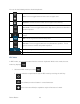
2. Scroll to Swype under KEYBOARD & INPUT METHODS and touch .
Tip: You can open the Swype settings from the Swype keyboard. Touch and hold on the
keyboard.
3. Choose from the following options.
Select Input Method: Touch to select Swype or Android keyboard.
How to Swype: Touch to learn Swype in quick steps.
Personal dictionary: Touch to make your personal dictionary for Swype.
Preferences: Touch to show the following settings menu for Swype.
• Audio feedback: Touch to turn on sounds from Swype.
• Vibrate on keypress: Check to activate vibration when a key is touched.
• Show tips: Check to turn on a flashing indicator for quick help.
• Auto-spacing: Check to automatically insert spaces between words.
• Auto-capitalization: Check to automatically capitalize the first letter of sentence-
initial words within the specific text entry field.