
Tesira Operation Manual




13. Tutorial: Basic system configuration
34
D SERIES Tesira Operation Manual rev 1.0.0
13.1.2. Firmware update
The rmware for the D Series amplier is contained within the Tesira server. Potential rmware updates of the
D Series ampliers are managed by the Tesira servers.
Update Tesira server rmware
1. Download Tesira Firmware from biamp.com: www.biamp.com/products/tesira/downloads.aspx. Locate the
Software and Firmware section and download the latest version of Tesira rmware.
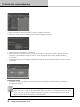
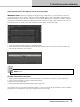
2. In Tesira software, click the Device Maintenance button or go to System > Network > Perform Device >
Maintenance.
3. Click the Update Firmware button.
4. Browse to the rmware update le, which should be a .tfa le. You may need to unzip the downloaded le to
obtain the .tfa le.
5. Select all of the devices that you’d like to update, or click Select All to update all devices. Click OK to begin
the update.
6. Allow up to 20 minutes for the rmware update to complete. You may notice the server(s) rebooting multiple
times throughout the update.
NOTE: Do not remove power or interrupt network connectivity during the update. Updating rmware over a WiFi
connection or via a remote internet connection is not recommended.
Update D Series amplier rmware
The rst time a D Series amplier is connected to an active Tesira system following a server rmware update, the
server will automatically update the rmware of the amplier when needed.
NOTE: Do not remove power or interrupt network connectivity during the update.
CAFÉ software
1. Download the latest CAFÉ software from www.labgruppen.com
2. Execute the installer and follow the on-screen instructions. This is a typical software installation where the
default settings are acceptable for the vast majority of users.