
Lake Controller Operation Manual
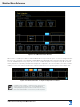


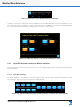


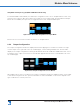


Table Of Contents
- 1. Welcome
- 2. Software Installation
- 3. Network & Firewall Overview
- 4. Lake Controller Tutorial
- 5. Home Menu Reference
- 6. EQ/Levels Menu Reference
- 7. System Store Recall Menu Reference
- 8. Modules Menu Reference
- 9. Module File Types & Lake LoadLibrary™
- 10. Groups Menu Reference
- 11. Solo/Mute Menu Reference
- 12. Icon Control Menu Reference
- 13. User Preferences Menu Reference
- 14. Pages Menu Reference
- 15. Network Menu Reference
- 16. Communication and Synchronization
- 17. Faults and Warnings
- 18. Analyzer Plug-in
- 19. Designer Mode Menu Reference
- 20. Lake-enabled Amplifier Reference
- 21. LM Series Reference and Operation
- 22. MY8-LAKE Reference and Operation
- 23. Keyboard Shortcuts
- 24. External Control Interfaces
- 25. Command Line Options
- 26. Firmware Update
- 27. Preset Manager
- 28. IP Address Reference
- 29. Corporate Information

Lake Controller Operation Manual Rev 1.5.8
Modules Menu Reference
143
Simplified View Input Toggle (MY8-LAKE Mesa Mode Only)
For an MY8-LAKE in Mesa Mode, the default I/O conguration view is set to Simplied View. In this view,
either the Host output or AES input can be selected as the source input signal. The Input Mixer and Input
Router are not available; the input selector toggles between Host Output and AES Input.
Figure 8-22: MY8-LAKE Simplified View Input Mixer
Please refer to section 22.4 for further information on Simplied View.
8.2.8 Output Configuration
The Output Conguration window is displayed either after tapping the zoom button located to the right
of each output on the right side of the I/O CONFIG page, or after loading a Module le. The automatic
display of the Output Conguration following a Module Recall can be enabled or disabled from this screen.
A summary of the output connections for each Module appears at the bottom of each Module cell on the
I/O CONFIG page.
Figure 8-23: Output Configuration Zoom Button
After tapping any of these zoom buttons, an Output Conguration window is displayed, which looks similar
to that shown in Figure 8-24. The options and number of channels available on this screen depend on the
type of Lake device currently selected.