
Quick Setup Guide

3
ENGLISH
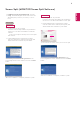
Windows Vista
STEP 1 STEP 3STEP 2
3
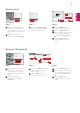
Choose the Display Settings
menu and select an optimal
resolution. (2560 x 1080)
4
Click the Apply button to
complete resolution setting.
5
Select the Advanced button.
6
After selecting a monitor screen,
select a vertical frequency of
60 Hz in Screen refresh rate
(S).
7
Click the Apply button to
complete optimal frequency
setting.
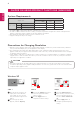
1
Move the mouse pointer to an
empty area on the Windows
screen (with no icons or task
bars) and click the right mouse
button.
2
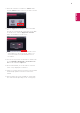
When the pop-up menu
appears, click the Personalize.
1
2
Personalize
Display Settings
3
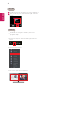
STEP 1 STEP 2 STEP 3
3
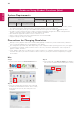
Choose the Settings menu and
select an optimal resolution.
(2560 x 1080)
4
Click the Apply button to
complete resolution setting.
5
Select the Advanced button.
6
After selecting a monitor screen,
select a vertical frequency of
60 Hz in Screen refresh rate
(S).
7
Click the Apply button to
complete optimal frequency
setting.
1
Move the mouse pointer to an
empty area on the Windows
screen (with no icons or task
bars) and click the right mouse
button.
2
When the pop-up menu
appears, click the Screen
resolution.
Windows 7, Windows 8.1
Screen resolution
2
1
4
3
5
6
7
2560 x 1080 (recommended)
4
5
6
7
2560 by 1440 pixels
2560 by 1080 pixels