
Owner's Manual





Connections and settings 39
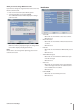
If you use the CD/DVD writer device for backup, the
backup status will be displayed as shown below.
- 1st. Status of making ISO image
- 2nd. Status of writing
Daily/Weekly backup
1. Connect the USB device for backup.
You cannot use the CD or DVD writer for daily or weekly
backup.
2.
Select [WEEKLY] or [DAILY] on the schedule options.
3. Select the backup device.
4. Enter the date and/or time to start backup on the
schedule start option.
5.
Enter the day of week and/or time on the Time Range
Start option.
6.
Enter the day of week and/or time on the Time Range
End option.
7.
Select [Estimate] icon and press ENTER.
8. Check the size of selected data and free space of USB
device. If the USB device has not enough space, change
the USB device of enough space or erase the connected
USB device.
Notes:
You cannot stop the backup in backup progress.
The warning message will appear for the conditions
listed below.
When the start time and end time setting are
wrong.
A media does not have enough space.
When you set the time for data that does not exist.
When the selected USB device is disconnected.
The estimated size of backup data is only the approxi-
mate size. So you must prepare sufficient space on the
media to prevent lack of space.
When the backup process starts, you can check the
backup status on the system information window.
While export is in progress or searching the backup
data from the external USB device, the scheduled back-
up will not be started.
After the export or backup search is finished, scheduled
backup will be restarted.
When you set the schedule backup, the backup data
size is estimated from the recording settings of the
Setup menu. If the real recorded data size are over the
estimated recording data size, the schedule backup may
not be activated.
•
•
•
-
-
-
-
•
•
•
•
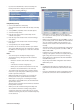
System
IR Remote ID: Select the IR Remote ID for this unit
(01~09). If you use multi systems set the IR Remote ID
for each DVR unit.
DVR ID: Select the DVR ID for this unit (NONE, 01~16). If
you use multi systems set the DVR ID for each DVR unit.
You can control the DVR by using the LKD1000 con-
troller. (For more details refer to the LKD1000 owner's
manual).
Auto User Logout: Logout is automatically at fixed inter-
vals. You can set auto logout time to 5 MIN, 10 MIN, 30
MIN, 60 MIN or OFF.
Default: You can reset the DVR to its original factory
settings. Some options cannot be reset (date, time, day-
light saving, time zone and user password settings).
Export: Export the configuration data from this DVR to
the USB memory stick.
Import: Import the DVRs configuration data from the
USB memory stick.
Notes:
Configuration data import is available when the con-
figuration data of a DVR is the same kind as this unit’s
data.
If you use a USB memory stick for configuration export,
you must disconnect the other external USB devices.
•
•
•
•
•
•
•
•