
Owners manual
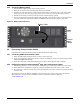
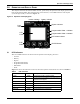
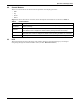
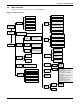
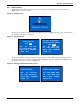
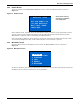

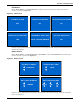
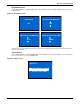
Table Of Contents
- Important Safety Precautions
- Save These Instructions
- Glossary of Symbols
- 1.0 Product Description
- 1.1 Features
- 1.2 Available Models
- 1.3 Appearance and Components
- 1.3.1 Front Panel and Controls
- 1.3.2 Rear Panel Features
- Figure 2 Rear panel components—Liebert GXT4 120V rack/tower, 500, 700, 1000VA model
- Figure 3 Rear panel components—Liebert GXT4 120V rack/tower, 1500VA model
- Figure 4 Rear panel components—Liebert GXT4 120V rack/tower, 2000VA model
- Figure 5 Rear panel components—Liebert GXT4 120V rack/tower, 3000VA model
- Figure 6 Rear panel components—Liebert GXT4 208V rack/tower, 3000VA model
- 1.4 Major Components
- 1.5 Operating Mode
- 2.0 Installation
- 3.0 Operation and Display Panel
- Figure 14 Operation and display panel
- 3.1 LED Indicators
- 3.2 Control Buttons
- 3.3 LCD
- 3.4 Menu Structure
- Figure 15 Menu structure
- 3.4.1 Startup Screen
- 3.4.2 Default Screen
- 3.4.3 Main Menu Screen
- 3.4.4 Prompt List
- 3.4.5 Warning List
- 3.4.6 Fault List
- 4.0 Operation
- 5.0 Communication
- 6.0 Maintenance
- 7.0 Troubleshooting
- 8.0 Battery Cabinet
- 9.0 Specifications
- Table 13 Specifications of GXT4-500RT120 - GXT4-700RT120 and GXT4-1000RT120 models
- Table 14 Specifications of GXT4-1500RT120 - GXT4-3000RT120 and GXT4-3000RT208 models
- Table 15 Battery cabinet specifications
- Table 16 Operating temperature parameters
- Table 17 Battery run times
- 9.1 Product Warranty Registration
- 9.2 Technical Support

Operation and Display Panel
17 Liebert
®
GXT4
™
3.2 Control Buttons
The four control buttons on the front of the operation and display panel are:
•ESC
•Up
•Down
•Enter
Figure 14 shows the buttons’ locations; their descriptions and functions are shown in Table 4.
3.3 LCD
The LCD panel shows the UPS status and enables changes to the UPS settings by assisting in
navigating through the Liebert GXT4’s menu (see 3.4 - Menu Structure).
Table 4 Control buttons
Control Buttons Description
ESC Button
Pressing this button returns to the previous menu or aborts any change in the input data field
before confirming.
Up Button
Pressing this button can move the cursor up or increase the value displayed in the input data
field. When a menu is displayed on several screens, pressing the button can scroll up.
Down Button
Pressing this button can move the cursor down or decrease the value displayed in the input
data field. When a menu is displayed on several screens, pressing the button can scroll down.
Enter Button Pressing this button can enter the next level menu or confirm the parameter setting value.