
Owners manual
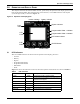
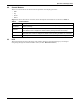
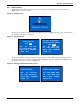
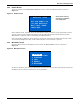

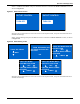
Table Of Contents
- Important Safety Precautions
- Save These Instructions
- Glossary of Symbols
- 1.0 Product Description
- 1.1 Features
- 1.2 Available Models
- 1.3 Appearance and Components
- 1.3.1 Front Panel and Controls
- 1.3.2 Rear Panel Features
- Figure 2 Rear panel components—Liebert GXT4 120V rack/tower, 500, 700, 1000VA model
- Figure 3 Rear panel components—Liebert GXT4 120V rack/tower, 1500VA model
- Figure 4 Rear panel components—Liebert GXT4 120V rack/tower, 2000VA model
- Figure 5 Rear panel components—Liebert GXT4 120V rack/tower, 3000VA model
- Figure 6 Rear panel components—Liebert GXT4 208V rack/tower, 3000VA model
- 1.4 Major Components
- 1.5 Operating Mode
- 2.0 Installation
- 3.0 Operation and Display Panel
- Figure 14 Operation and display panel
- 3.1 LED Indicators
- 3.2 Control Buttons
- 3.3 LCD
- 3.4 Menu Structure
- Figure 15 Menu structure
- 3.4.1 Startup Screen
- 3.4.2 Default Screen
- 3.4.3 Main Menu Screen
- 3.4.4 Prompt List
- 3.4.5 Warning List
- 3.4.6 Fault List
- 4.0 Operation
- 5.0 Communication
- 6.0 Maintenance
- 7.0 Troubleshooting
- 8.0 Battery Cabinet
- 9.0 Specifications
- Table 13 Specifications of GXT4-500RT120 - GXT4-700RT120 and GXT4-1000RT120 models
- Table 14 Specifications of GXT4-1500RT120 - GXT4-3000RT120 and GXT4-3000RT208 models
- Table 15 Battery cabinet specifications
- Table 16 Operating temperature parameters
- Table 17 Battery run times
- 9.1 Product Warranty Registration
- 9.2 Technical Support

Operation and Display Panel
Liebert
®
GXT4
™
20
3.4.2 Default Screen
Press any button in the START SUCCESSFUL screen to enter the default interface, shown in
Figure 19.
Figure 19 Default screen
In the default screen, the LCD shows the UPS model, output parameters, input parameters, battery
capacity with run time estimate and load percentage. The UPS operation mode (online /inverter,
ECO, Battery or Bypass) will be indicated by the LED indicators.
If no control button (ESC, Up, Down, Enter) is pressed for 2 minutes, the LCD will enter the screen
saver mode (backlight turns off). It will remain off until a control button is pressed.
3.4.3 Main Menu Screen
Press the Enter button in the default screen to enter the MAIN MENU screen, as shown in
Figure 20.
Figure 20 Main Menu screen
To select a submenu, press the Up or Down button to move the cursor to the required item, then press
the Enter button to enter its submenu or set its parameter.
O/P: 120V 60HZ 11.7A
I /P: 120V 60HZ 13.1A
BATT: 100% 3MINS
LOAD: 100%
GXT4-UPS 3KVA
Values shown will vary
according to installation
and configuration.
1 STATUS
2 CONFIGURATION
3 CONTROL
4LOG
5 ABOUT
6NETWORK