
User's Manual






7
1. Overview 2. Initial Set-up 3. DaiIy Operation
4. Additional
Information
5. Maintenance &
Troubleshooting
6. Safety &
Specifications
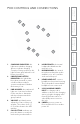
POD CONTROLS AND CONNECTIONS
1. CHARGING INDICATOR: this
light turns red when charging,
green to indicate charging
complete. During operation, this
light will turn green when the call
button is pressed.
2. POWER/LOW BATTERY
INDICATOR: this light blinks
blue when powered on, turns
solid blue when ready for
operation and turns red when
the battery is low.
3. POD NUMBER: the number will
light as a clear visual indicator
for the teacher to determine
which pod represents which
group number.
4. VOLUME: up/down buttons
adjust the volume of the pod
speaker. The volume level (-5
to 5) will be shown in the LED
window.
5. CALL BUTTON: students can
press this button to notify the
teacher they need assistance.
6. LOUDSPEAKER: the internal
loudspeaker distributes the
teacher’s voice.
7. MICROPHONES: the internal
microphones that picks up the
student’s voice are located at
each end of the pod.
8. HEADPHONE OUT: connect
headphones for private listening.
The pod speaker is muted when
headphones are connected.
9. USB CHARGING/POWER
INPUT: to charge pods in
addition to those in the charging
station, plug the charging cable
from the Activate station or
other USB power source into
this jack.
10. POWER: press to power on.
Press and hold for 3 seconds to
power off.
5
4
1
2
3
6
7
8
7
9
10