
Instructions / Assembly

Problem Solution
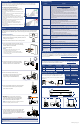
No picture / signal • Ensure the camera is connected to a compatible DVR. For full camera
compatibility, visit lorextechnology.com/compatibility.
• Ensure the wireless receiver is properly connected to the DVR.
• Ensure the power pack is properly inserted into the camera base.
• Ensure you have removed the PLEASE REMOVE label from the power pack.
• Connect the power adapter to your power pack to ensure the power pack
is charged. The LED indicator on the power pack glows green for full
charge, red for less than full charge.
• Remove obstructions between the receiver and camera. Materials such
as brick, concrete and wood can significantly impact the wireless signal
strength.
• Try repositioning the camera, receiver, or both to improve the reception.
The receiver can be wall mounted using the included double-sided tape or
mounting screws.
Battery life is too
short
• Ensure the camera is not pointing at a high-traffic area. Position the
camera so it only captures areas of interest with no high-traffic areas (e.g.,
a busy sidewalk or roadway) visible in the image.
• Live video is being viewed too frequently. Viewing live video often will
impact battery performance.
• Battery life will vary based on temperature, settings and number of events.
Picture is dropping • Move the camera closer to the receiver.
• Try repositioning the camera, receiver, or both to improve the reception.
Picture is or has
become choppy
• The picture may become choppy when experiencing a lower frame rate
(e.g., 6 frames per second vs. a higher 15 frames per second). This may be
related to signal strength or the camera’s resolution.
• Ensure the camera resolution is set to 720p using the Lorex Secure app or
the DVR.
• Try moving the camera closer to the receiver.
• Remove obstructions between the receiver and camera.
Camera is not
detecting motion
• Your camera may be too far away from the area of interest. Try to keep the
camera within 20ft (6.1m) of the area you want to monitor.
• Review the “Installation Tips” section to ensure your camera is installed in
an optimal location.
Picture is too
bright
• Ensure your camera isn’t pointed directly at a source of light (e.g., sun or
spot light).
• Move your camera to a different location.
Night vision is not
working
• The night vision activates when light levels drop. The area may have too
much light.
Picture is not clear • Check the camera lens for dirt, dust, spiderwebs. Clean the lens with a
soft, clean cloth.
Bright spot in video
when viewing at
night
• Night vision reflects when pointing a camera through a window. Move the
camera to a different location.
Troubleshooting
LHB900_QCG_EN_R5
Available Accessories
Pairing the Camera
Dimensions
7.2”
182mm
3.8”
96mm
6.1”
154mm
4.6”
117mm
5.5”
139mm
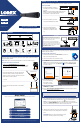
To install your cameras:
1. Set the mounting bracket in the desired mounting position.
Mark holes through the mounting bracket (shown as
orange X’s on the right).
2. Drill holes where marked for the mounting screws.
3. Insert the included mounting screws (×3) into
the 3 holes closest to the top of the mounting
bracket. Make sure all screws
are fastened tightly.
NOTES:
• Insert the included drywall anchors if you are
mounting the camera onto drywall.
• The hole at the bottom of the mounting bracket
will be used in step 5, once the camera is attached
to the mounting plate.
4. Lower the camera base onto the mounting
bracket so the tab in the mounting bracket
locks into the slot in the camera base.
ATTENTION:
This camera includes an Auto Mechanical IR Cut Filter. When the camera changes between Day/Night viewing
modes, an audible clicking noise may be heard from the camera. This clicking is normal, and indicates that the
camera filter is working.
STEP 4: Installing the Cameras
Follow the instructions below to secure the cameras. It is recommended that
you refer to the “Installation Tips” section to help you select good mounting
locations.
5. Insert the security screw through
the fastener on the camera base to secure
the camera to the mounting bracket.
Tighten using the included Allen key.
6. Insert the included power pack into the bottom
of the camera base. Push up until the power
pack ‘clicks’ into place.
11.8” / 300mm
8.2”
209mm
2.1”
53mm
4.1”
104mm
The following accessories are available for purchase. Visit lorextechnology.com and
search for the model numbers below for details:
Installation Tips
• See images to the right for ideal setup. It is
recommended to place your camera at least 7ft (2.1m)
above the ground and angle it slightly downward toward
the monitoring area, excluding any busy areas
(e.g., sidewalks or roadways).
• Ensure the camera image is free of obstructions (i.e., tree
branches).
• Position the camera no more than 20ft (6.1m) away from
the area you wish to monitor.
• For best performance, position the camera so that
objects of interest will move from side-to-side across the
camera image, rather than moving towards or away from
the camera.
• Install the camera within range of the wireless receiver
(noted in the camera’s specifications).
• This camera is weather resistant for outdoor use
(IP65 rated). Installation in a sheltered location is
recommended.
• Battery life will vary based on temperature, settings and
number of events.
The wire-free cameras use a Passive InfraRed (PIR) sensor to ensure video is only
recorded when motion is detected. Follow the tips below for more accurate motion
detection and to optimize battery life:
Your cameras should be paired to the receiver and ready to use out of the package. If a
camera becomes unpaired from the receiver, or if you have purchased a wire-free add-
on camera (max. 6 cameras per system), visit lorextechnology.com/pairing/wirefree for
pairing instructions.
7. OPTIONAL: Lift up the rubber seal on the
right-side release button. Insert the locking
screw and tighten using the included Allen
key to secure the power pack in place.
8. Twist the adjustment ring near the camera base
counterclockwise to loosen and reposition the
camera. Hold the camera in the desired angle and
tighten the adjustment ring completely to secure
the camera in place.
Charging the Power Pack
Use the included power adapter to charge the power
pack. Connect the power adapter to the micro USB
port on the power pack. The LED indicator on the
power pack shows you the charging status (must be
plugged in).
LED Color Meaning
Green
Fully charged
Red
Currently charging
Power Pack Charge Time
2-cell
Approx. 4 hours
4-cell
Approx. 8 hours
NOTE: You will need to loosen the locking screw to
remove the power pack in the future.
Color
Wire-Free Add On
Camera
Extra Power Pack
Power Adapter
2-cell Accessory
Power Pack
4-cell Accessory
Power Pack PLUS
WHITE
LWB3801AC1B (US)
LWB3801AC1P (EU/UK)
ACCPWRWF1 ACC2CBATT ACC4CBATT
BLACK
LWB3901AC1B ACCPWRWF1BK ACC2CBATTBB ACC4CBATTBB