
User guide

|
8
HyperControl for Logic Pro
|
User Guide
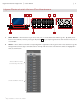
8. F-Keys – These buttons let you navigate through Logic Pro and accomplish several tasks without using the mouse or
computer keyboard.
✓Axiom Pro 25 Users:
Due to space limitations, Axiom Pro 25 does not feature dedicated F-Keys. Instead, the Soft-Keys on the bottom
row can be converted to F-Keys by pressing the “F1-4” Function button on the top row. Note that Axiom Pro 25
only supports F-Keys 1 through 4 (Mode, < Track, Track >, and Mute); it does not have F-keys 5-7 (Solo, < Bank,
and Bank >).
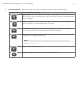
• F1 (Mode)
Axiom Pro can operate in two different modes when using HyperControl: Mixer Mode and Instrument Mode. This
button toggles between the two modes.
• F2 (< Track)
This button selects the previous track within Logic Pro. If a MIDI or virtual instrument track is selected, that track is
also record-enabled. For example, if track 8 is currently selected, pressing this button will select track 7. The currently
selected track is highlighted in white.
• F3 (Track >)
This button selects the next track within Logic Pro. If a MIDI or virtual instrument track is selected, that track is also
record-enabled. For example, if track 1 is currently selected, pressing this button will select track 2. The currently
selected track is highlighted in white.
• F4 (Mute)
This button mutes the track that is currently selected within Logic Pro.
• F5 (Solo)
This button solos the track that is currently selected within Logic Pro.
• F6 (< Bank)
In the Arrange window, the left edges of all tracks that are currently under the control of Axiom Pro are highlighted in
white. Pressing this button shifts control to the previous bank of eight tracks in Logic Pro. For example, if tracks 9-16
are currently controlled by Axiom Pro, pressing this button shifts control to tracks 1-8 and highlights those tracks in
the Arrange window.
• F7 (Bank >)
In the Arrange window, the left edges of all tracks that are currently under the control of Axiom Pro are highlighted in
white. Pressing this button shifts control to the next bank of eight tracks in Logic Pro. For example, if tracks 1-8 are
currently controlled by Axiom Pro, pressing this button shifts control to tracks 9-16 and highlights those tracks in the
Arrange window.
✓Note to Axiom Pro 25 users:
While Axiom Pro 25 does not feature Bank buttons, bank selection can still be performed using the “< Track”
and “Track >” (F2, F3) buttons and selecting the track beyond the bounds of the currently selected bank. For
example, if the right-most track of the current bank is selected and the “Track >” button is pressed, the next bank
of tracks will become active. Alternatively, if the left-most track of a current bank is selected and the “< Track”
button is pressed, the previous bank will become active.