
User`s guide
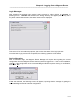
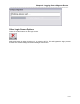

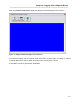
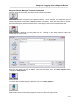

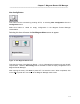
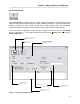

Table Of Contents
- Introduction
- Magnum Router Features
- Pre-Installation
- Installing the Hardware
- Magnum Router Manager Installation
- Logging Onto a Magnum Router
- Magnum Router GUI Manager
- Magnum Router Manager Main Screen
- Toolbar Buttons
- New Config Button
- Port Config Button
- WAN Config Button
- Other WAN Config Buttons
- Master WAN-IP Address
- WAN-IP Route Map
- Advanced Routing
- RIP Version 1 Routing
- Ethernet Config Button
- Micro-Band Voice Over IP
- Save Configuration
- Send Configuration
- Reboot the Magnum Router
- Menu Bar
- Configuration Menu (ALT-C)
- Settings Menu (ALT-S)
- System Menu (ALT-Y)
- Statistics Menu (ALT-T)
- Help Menu Item (ALT-H)
- Exit Menu Item (ALT-X)
- Toolbar Buttons
- Magnum Router Manager Main Screen
- Magnum Router Specialized Functions
- Sample Configurations
- Magnum Router Troubleshooting
- Magnum Router Cable Specifications
- Marathon Port Configuration
- Configuration Worksheets

Chapter 6: Logging Onto a Magnum Router
___________________________________________________________________
6-16
Magnum Router Manager Terminal
This option opens a text-based terminal. This can be used to program optional equipment (such
as a Micom Marathon) without having to exit the Magnum Router Manager. It is NOT a VT100
terminal emulator. This means that special control characters are not recognized and will be
displayed. As an example, it could be used to access a Micom Marathon to check the unit
status. The terminal program will ONLY work if the Manager IS NOT currently logged onto a
Magnum Router.
The terminal can only be accessed through the main login screen.
Clicking on the “Terminal” button will display a cursory warning as to the capabilities of the
terminal program.
Click OK and the terminal mode screen will be displayed.
Select Serial if the connection to the device is using the PC’s communications port, or select
Telnet and enter a Host IP address to connect remotely.
Select Cancel to return to the main login screen.