
User`s guide

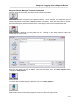


Table Of Contents
- Introduction
- Magnum Router Features
- Pre-Installation
- Installing the Hardware
- Magnum Router Manager Installation
- Logging Onto a Magnum Router
- Magnum Router GUI Manager
- Magnum Router Manager Main Screen
- Toolbar Buttons
- New Config Button
- Port Config Button
- WAN Config Button
- Other WAN Config Buttons
- Master WAN-IP Address
- WAN-IP Route Map
- Advanced Routing
- RIP Version 1 Routing
- Ethernet Config Button
- Micro-Band Voice Over IP
- Save Configuration
- Send Configuration
- Reboot the Magnum Router
- Menu Bar
- Configuration Menu (ALT-C)
- Settings Menu (ALT-S)
- System Menu (ALT-Y)
- Statistics Menu (ALT-T)
- Help Menu Item (ALT-H)
- Exit Menu Item (ALT-X)
- Toolbar Buttons
- Magnum Router Manager Main Screen
- Magnum Router Specialized Functions
- Sample Configurations
- Magnum Router Troubleshooting
- Magnum Router Cable Specifications
- Marathon Port Configuration
- Configuration Worksheets

Chapter 7: Magnum Router GUI Manager
___________________________________________________________________
7-1
Chapter 7: Magnum Router GUI Manager
The Manager User Interface
The Magnum Router GUI Manager uses a graphical user interface common to most Windows
programs. Movement around the manager is done by either clicking the button or menu item,
using shortcut keys (as shown by an underscore under a letter or a menu or button), or using
the tab key.
Selected buttons change text color from black to red
Throughout the Magnum Router Manager, there are several shortcut keys that have been kept
constant, these are:
ALT-V = is used to save changes to edited fields, or save an entire screen of data.
ALT-X = is used to exit editing, or exit a screen to the previous screen
ALT-N = is used to create a new configuration or entry in a screen
ALT-D = is used for deletion of data from a screen
Important Note: Any data that is entered into the Magnum Route
r
Manager is not sent to any Magnum Router until the Send Config button is
selected.