
User`s guide


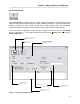

Table Of Contents
- Introduction
- Magnum Router Features
- Pre-Installation
- Installing the Hardware
- Magnum Router Manager Installation
- Logging Onto a Magnum Router
- Magnum Router GUI Manager
- Magnum Router Manager Main Screen
- Toolbar Buttons
- New Config Button
- Port Config Button
- WAN Config Button
- Other WAN Config Buttons
- Master WAN-IP Address
- WAN-IP Route Map
- Advanced Routing
- RIP Version 1 Routing
- Ethernet Config Button
- Micro-Band Voice Over IP
- Save Configuration
- Send Configuration
- Reboot the Magnum Router
- Menu Bar
- Configuration Menu (ALT-C)
- Settings Menu (ALT-S)
- System Menu (ALT-Y)
- Statistics Menu (ALT-T)
- Help Menu Item (ALT-H)
- Exit Menu Item (ALT-X)
- Toolbar Buttons
- Magnum Router Manager Main Screen
- Magnum Router Specialized Functions
- Sample Configurations
- Magnum Router Troubleshooting
- Magnum Router Cable Specifications
- Marathon Port Configuration
- Configuration Worksheets

Chapter 7: Magnum Router GUI Manager
___________________________________________________________________
7-4
Port Config Button
Select Port Config to configure the physical and logical characteristics of the WAN ports of the
Magnum Router (the WAN ports are M1, WAN1, WAN2 and WAN3). Physical characteristics
determine whether the port is DTE (accepts clock), DCE (supplies clock) and port speed.
Logical characteristics include the Frame Relay LMI type and the Frame Relay link type.
To get to the Port Configuration screen from the manager main screen, click the P
ort Config
button, or press ALT-P. This is also accessible by clicking on the S
ettings menu and selecting
Port Configuration.
Save any configuration
Changes that have been
made
Exit this screen to the
Main Screen
Selec t w hic h W A N port
to configure by clicking
in the circle next to the
port name
Choose the MODE of
the selected port
Select the port's fram e
relay link type
Select the port's s peed
Select the LM I T ype
Add NOTES to assist in
documentation
Figure 16 - Port Configuration Screen