
User`s guide
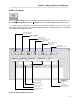

Table Of Contents
- Introduction
- Magnum Router Features
- Pre-Installation
- Installing the Hardware
- Magnum Router Manager Installation
- Logging Onto a Magnum Router
- Magnum Router GUI Manager
- Magnum Router Manager Main Screen
- Toolbar Buttons
- New Config Button
- Port Config Button
- WAN Config Button
- Other WAN Config Buttons
- Master WAN-IP Address
- WAN-IP Route Map
- Advanced Routing
- RIP Version 1 Routing
- Ethernet Config Button
- Micro-Band Voice Over IP
- Save Configuration
- Send Configuration
- Reboot the Magnum Router
- Menu Bar
- Configuration Menu (ALT-C)
- Settings Menu (ALT-S)
- System Menu (ALT-Y)
- Statistics Menu (ALT-T)
- Help Menu Item (ALT-H)
- Exit Menu Item (ALT-X)
- Toolbar Buttons
- Magnum Router Manager Main Screen
- Magnum Router Specialized Functions
- Sample Configurations
- Magnum Router Troubleshooting
- Magnum Router Cable Specifications
- Marathon Port Configuration
- Configuration Worksheets

Chapter 7: Magnum Router GUI Manager
___________________________________________________________________
7-15
Figure 20 - Advanced Routing Screen
Adding an Advanced Routing Entry
To add an entry in the WAN IP Route Map screen, perform the following steps:
1. Click N
ew Entry or press ALT-N
2. Enter data in the IP Address, Subnet Mask, and Gateway Address fields
3. Click Sav
e Edit or press ALT-V to save the entry
4. Click Ex
it Edit or press ALT-X to return to the WAN IP Route Map screen.
Changing an Advanced Routing Entry
It is possible to change an entry after it has been entered into the table. Follow these steps to
change an entry:
1. Double-Click on the entry that needs modification in the table
This will cause all of the entry data to be loaded in the fields above the table.
2. Make any modifications required
3. Click on Sav
e Edit or press ALT-V
4. Click on Ex
it Edit or press ALT-X
If this entry was selected by mistake and is not the one that needed modification, just click on
the E
x
it Edit or press ALT-X.
Deleting an Advanced Routing Entry
In some cases, an entry may need to be deleted. To do this, follow these steps:
1. Select an entry in the table.
2. Either click the D
elete Entry button or press ALT-D.
3. A verification question is asked to make sure that this is the entry to delete, if it
is, select Y
es. Selecting No will return to the Advanced Routing screen.
Repeat for each entry that is to be deleted.
Once the additional routes have been added, click on Sav
e or press ALT-V to save any
changes, then click on E
x
it, or press ALT-X to return to the WAN-IP Route Map screen.
RIP Version 1 Routing
Enable RIP routing by clicking on the box next to Enable RIP Version 1 Routing. To disable
RIP routing, remove the check in the box.
The Magnum Router implements the RIP routing protocol in a “hybrid” fashion. It is covered in
more detail in chapter 8.