Specifications


Table Of Contents
- Content
- Welcome!
- Warranty
- 1. Getting Started
- 2. Software Configuration
- 3. Data Capturing
- 3.1. Open Files
- 3.2. Replay of Files
- 3.3. Editing Video Sequences
- 3.4. Saving Files
- 3.4.1. Setting the Recording Frame Rate
- 3.4.2. Setting the Recording Modes
- 3.4.3. Temporary Recording File
- 3.4.4. Saving Radiometric Video Sequences or AVI Files
- 3.4.5. Saving Image Data as Radiometric Snapshot or Text File
- 3.4.6. Saving Text File of the Temperature / Time Diagram
- 3.4.7. Location and Filename Templates of Triggered Recordings
- 3.4.8. Display of Snapshots in a Separate Window
- 3.4.9. Saving Images or Screenshots to Clipboard
- 4. Data Processing
- 5. Visual Camera (TIM200 only)
- Linescanner Mode
- 7. Further Information
thermoIMAGER TIM 16
Note
A reduced frame rate means a less loaded computer in terms of data processing. Therefore, please
adjust the displayed frame rate according to your application as well as to the performance of your
computer.
2.1.5. Change of Title Bar
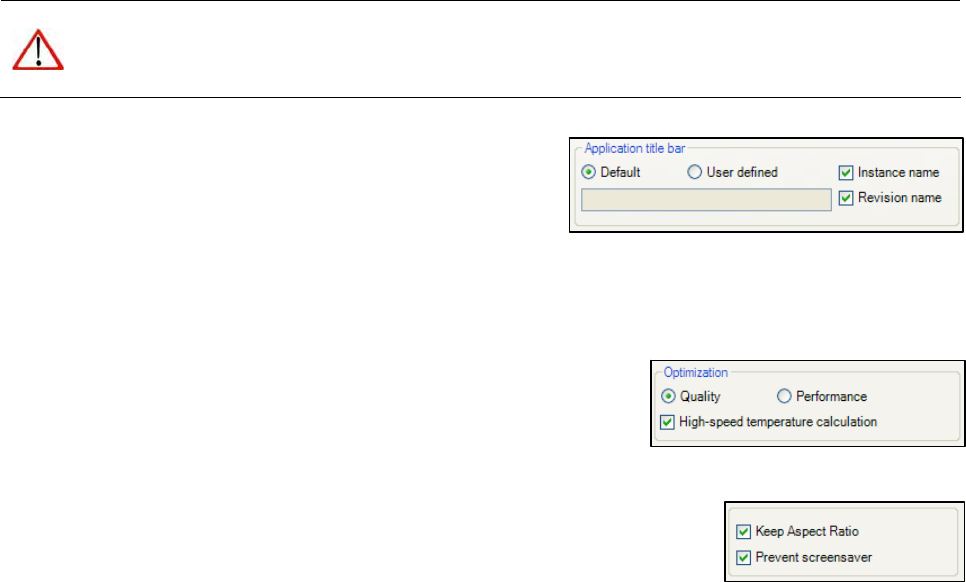
The Application title bar option enables the individual setting
of title bar.
The setting Default displays the standard software name
„Optris TIM Connect“. Using the setting User defined you can
specify an individual name. The option Instance name is important if starting several cameras and software on
one computer. The option Revision name is disabling the display of software version in the title bar.
2.1.6. Optimization of Software
The display of the thermal image in the main window of the software can
be adjusted according to the performance of the computer. Using a slow
computer it is recommended to choose the option Performance and to
deactivate all other options (display will be enlarged from 160 x 120
pixels to only 320 x 240 pixels). Choosing the option Quality and High-speed temperature calculation the
display will be enlarged from 160 x 120 pixels to 640 x 480 pixels.
If Keep aspect ratio is selected the aspect ratio will be maintained.
The option Prevent screensaver is suppressing the screensaver functionality of
your computer.