
Operating Instructions


17
2.3 Playing Video Clips
1. If your files are in a storage card, insert the card into your device.
2. Tap
MioPlayer Pro on the Home screen and then tap Videos to start the program.
3. The program will search the matching files in the specific folder on your
device and in all folders on a storage card. It then displays the video file list.
NOTE: The file information such as the length of the video and file size is displayed together
with the file name.
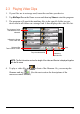
4. To play a video file, tap
in front of the filename. Or, you can tap the
filename and tap
. (See the next section for descriptions of the
onscreen control buttons.)
Play the selected file.
The change of color
indicates the file is
selected.
Exit
Delete the
selected file.
Indicate the format
of the video file.
Selected file/
Total number of files.