
Operating Instructions



30
4.2 Preparing the Pictures for Your Device
Before using the program, have the files (.jpg, .jpeg, or .bmp) ready on either your
device’s My Flash Disk\My Pictures folder or on a storage card.
NOTE: The Pictures program does not support the display of BMP files in 32-bit and above
color depth formats.
A tool called MioTransfer is supplied for you to easily copy the files from your
computer to the correct location. (See section 12.3 for information.)
4.3 Viewing Pictures in Thumbnail View
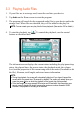
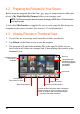
1. If your files are in a storage card, insert the card into your device.
2. Tap
Pictures on the Home screen o start the program.
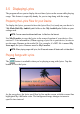
3. The program will search the matching files in the specific folder on your
device and in all folders on a storage card. It then displays the pictures in the
thumbnail view.
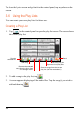
Scroll down
Selected file/
Total number of files
A
frame indicates
the picture is
selected.
Scroll up
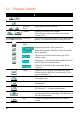
Delete all pictures.
Exit
Start the slideshow.
Delete the selected picture.
Set the length of time each slide is displayed
before moving on to the next slide. Tap the
button to switch to the next available option
(1 second/3 seconds/5 seconds).
The satellite icon
indicates the photo
contains geographic
coordinates
information.