
Operating Instructions



39
Camera Control Panel
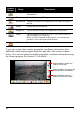
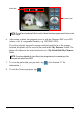
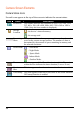
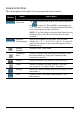
The control panel to the right of the screen provides these buttons:
Control
Button
Name Description
Zoom In/
Zoom Out
Tap
to zoom in the camera lens; when zoomed in,
tap
to zoom out. The available zoom settings are
1x, 1.25x, and 2x. A scale will appear at the bottom of the
screen showing the current zoom ratio.
NOTE: If you are using a resolution higher than (but not
including) 800 x 600, the Zoom function will not be
available.
Exposure
Compensation
Adjusts the brightness of the photo. The available
settings are –1.5, -1, -0.5, 0, 0.5, 1, and 1.5. A scale will
appear at the bottom of the screen showing the current
brightness level.
Change
Function
Switches to the Video Mode.
Continuous
Shot
Enables or disables the continuous shot function. (See
later sub-section on “Using the Continuous Shot
Function” for details.)
Display Enables or disables the display of the status icons.
Timer Enables or disables the timer function. (See later
sub-section on “Using the Timer” for details.)
Settings Opens the Camera Settings screen. (See Section 5.4 for
information.)
View Switches to the View mode. (See Section 5.7 for
information.)