
Operating Instructions


43
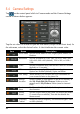
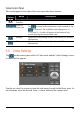
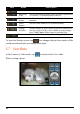
Item Name Description
Reset Restore the Camera settings to their factory defaults.
To leave the Settings screen, tap
. Any changes that you have made will be
stored and retained until you change them again.
5.5 Recording Videos
1. Insert a storage card if you want to store your videos to it. Make sure that the
correct storage location is specified. (See Section 5.6 for information.)
2. Start the Camera program (as described in 5.1). The program will be in the
Camera mode by default. Tap
to switch to the Video mode. This will be
indicated by the
on the screen.
3. If you need to change the settings, tap
. (See Section 5.6 for information.)
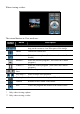
4. Aim the camera lens at your target. You can use the control button on the right
to adjust the camera lens (details provided in following section).
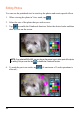
5. To begin recording, fully press the Camera button.
The system will play a beep sound and the red icon will appear on the
screen to indicate that recording is in progress. The number to the side shows
the length of video recorded so far (e.g.
). By default, videos are
limited to a length of 15 seconds. (You can change this in Video Settings.)
6. To manually end the recording, press the Camera button again. The system
will play a beep sound to indicate that the recording has been stopped.