
Operating Instructions


44
7. After recording, he program will save it with the filename MOVxxxxx.MP4
(where xxxxx is a sequential number, e.g.MOVC00001.MP4).
NOTE:
z If you have deleted all video files in the storage device, the numbering of the file names will
restart from 00001.
z By default the file format is MP4. You can also change the format to 3GP. (See 5.6 for
more information)
If you have already inserted a storage card and specified it as the storage
location, the video will be saved on the card in the \My Videos\ folder. The
video will otherwise be stored in the device’s \My Flash Disk\My Videos\
folder.
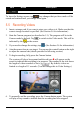
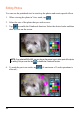
8. To view the video that you just recorded, tap
. (See Section 5.7.)
9. To exit the program, tap
.
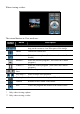
Video Screen Elements
Video Status Display
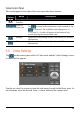
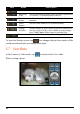
Several icons appear at the top of the screen to indicate the current status:
Icon Name Description
Resolution The number indicates the resolution is 128 x 96 or 176 x
144. (Only the front number is displayed.)
Storage
Location
− the device’s internal memory
− the storage card
Video Mode Indicates that you are currently in Video mode.
Recorded
Time
The red icon indicates that recording is in progress. The
changing number shows the amount of time recorded so
far.
Remaining
Recording
Time
The number indicates the length of video that can still be
stored at the storage location. The length is determined by
the amount of space remaining in memory and the selected
resolution. (The maximum value that can be displayed on
the screen is 99. Therefore, if the remaining time is greater
than 99, only 99 will be shown on screen.)