
Operating Instructions






53
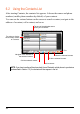
6.3 Using the Summary Screen
In the contact list, tapping a contact twice displays the summary screen of the
contact.
6.4 Navigating to a Contact’s Address
You can set a contact’s address as your GPS navigation destination.
NOTE: For the navigation software to navigate to an address in Contacts, there should be no
Suite #, Apartment # or other additional information on the Street Address line, as these may
prevent correct navigation. You might consider saving the additional Suite, Apartment or
other numbers to a different field such as the “Department” field.
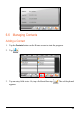
1. Tap the
Contacts button on the Home screen to start the program.
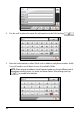
2. In the contact list, select the desired contact and tap
.
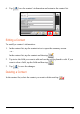
3. Tap
to select the home address or
to select the work address.
Back
Tap to scroll through the
entry fields.