
Operating Instructions





74
To exit the program, tap
.
8.2 Using the Card Scanner
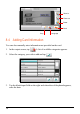
1. Tap Tools on the Home screen and then tap Card Scanner to start the program.
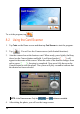
2. Tap
. You will see the Camera screen (with limited functions).
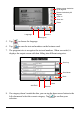
3. Aim the camera lens at the business card. When ready, press lightly (halfway
down) on the Camera button and hold. A red focus bracket (
) will
appear in the center of the screen. When the color of the bracket changes from
red to green (
), focusing is completed. Now press fully down on the
Camera button to take the photo. The system will play a sound to indicate that
the shutter has been released.
NOTE: In the Camera screen. Only the , and buttons are available.
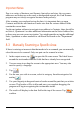
4. After taking the photo, you will see the image screen.