
Quick Start Guide
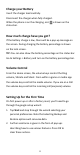
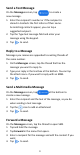
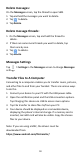
Table Of Contents
- Insert SIM card & memory card
- Key Functions
- Charge your Battery
- Volume Control
- Setting Up for the First Time
- Connect to a Wi-Fi Network
- The Home Screen
- Screen Locks
- Access the Quick Settings Panel
- Swipe down from the top of the screen and tap the
- Delete messages:
- Delete message threads:
- Messages Settings
- Transfer Files to A Computer
- Connecting to a computer enables you to transfer m
- 1.Connect your device to your PC with the USB power
- 2.Open the notification panel and the USB connection
- 3.Tap File transfer to share files to/from your PC.
- 4.Your device should be displayed as a removable dev
- Google, Android, Google Play and other marks are t

4
Charge your Battery
Insert the charger lead carefully.
Disconnect the charger when fully charged.
When the phone is on the charging, icon is shown on the
status bar.
How much charge have you got?
If the battery charge is low, there will be a pop-up message on
the screen. During charging the battery percentage is shown
on the lock screen.
TIP: You can also show the battery percentage on the status bar.
Go to Settings > Battery and turn on the battery percentage bar.
Volume Control
From the Home screen, the volume keys control the Ring
volume, Vibrate and Silent. From within a game or media app
the volume keys control the media volume. If you are on a Call
the volume keys control the incoming call (earpiece) volume.
Setting Up for the First Time
On first power up or after a factory reset, you’ll need to go
through the google setup wizard:
1.
Tap Start and step through the wizard selecting your
personal preferences. Note that selecting Backup and
Restore options will consume data.
2.
Further assistance is given in the form of pop ups
describing how to use various features. Press OK to
clear these notices.