
User manual
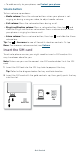

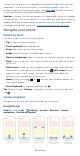

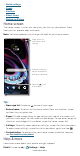
Table Of Contents

Learn the basics
» Quick settings
» Speak
» Gestures
» Direct Share
» Picture-in-Picture
Home screen
The home screen is what you see when you turn on your phone. From
here you can explore apps and more.
Note: Software updates may change the look of your home screen.
Home screen. At the top, tap the Google bar to type search options or tap the right hand microphone icon to speak a search. Icons at the top show notifications and phone status icons.
Swipe up from center bottom to get to your apps. App icons along the bottom are commonly used apps: phone, message, Google Chrome, Gallery, and camera.
Tips
» Open app list: Swipe up to see all your apps.
» Return home: To return to the home screen from any location, swipe
up from the navigation bar.
» Pages: To add a page, drag an app to the right side of the screen until
you see a new page. You can add multiple pages. To see other pages of
shortcuts and widgets (if available), swipe the home screen left.
» Settings: To quickly open common settings, swipe the status bar down.
To open more settings, swipe the status bar down again and tap
.
» Customization: To personalize your home screen and other features,
see Personalize your phone.
Help & more
Learn even more about your phone and get support.
Find it: Swipe up
> Settings > Help
11:35
11:35
Say “Hey Google”
Play Store
MotoDuo
3APR
3
3
TUE
Swipe up to see
all your apps.
Search by typing or
tap the microphone
and say a command.
Swipe down for
notifications and
settings.