
User manual


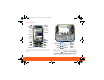
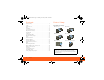
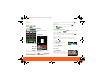
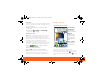
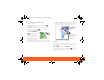
Table Of Contents
- Your Phone
- Contents
- Device Setup
- Calls
- Home Screen
- Keys
- Text Entry
- Voice Input & Search
- Ringtones & Settings
- Synchronize
- Contacts
- Social Networking
- Email & Text Messages
- Tools
- Photos & Videos
- Apps & Updates
- Location Apps (GPS)
- AT&T Features & Services
- Web
- Music Player & Radio
- Wi-Fi® & Bluetooth® Connections
- Memory Card & USB
- Security
- Icons & Battery Life
- Troubleshooting
- Safety, Regulatory & Legal
- Battery Use & Safety
- Battery Charging
- SAR (IEEE)
- WHO Information
- EU Conformance
- FCC Notice
- Industry Canada Notice
- GPS & AGPS
- Navigation
- Driving Safety
- Privacy & Data Security
- Use & Care
- Recycling
- Perchlorate Label
- Hearing Aid Compatibility
- Software Copyright Notice
- Content Copyright
- OSS Information
- Export Law
- Registration
- Warranty

Your Phone 1
Your Phone
Most of what you need is in the touchscreen and the
keys below it (“Menu, Home, Search, & Back Keys” on
page 9).
AT&T
10 minutes ago
Lisa Jones
My company is sponsoring the
9
Text Messag BrowserMarket
T
ext
Me
11:35
3G
Microphone
Menu
Home
Micro
USB
Connect
charger
or PC
Charged
or new
message
Volume
3.5mm
Headset
Camera
Back
Power /
Sleep
Hold=
power
Press=
sleep
Search
To u ch Pad
Tip: Your phone can automatically switch to vibrate
mode whenever you place it face-down. To change
this, touch Menu > Settings > Sound & display
> Smart Profile: Face Down to Silence Ringer.
Note: Your phone might look different.
.
?
10 minutes ago
Lisa Jones
My company is sponsoring the grand
AT&T
e
s ag
o
Text Messaging
BrowserMarket
9
11:35
3G
Delete
New
Line
Scroll/
Select
Shift
Alternate
Menu
Back
Search
Press=text
Hold=voice
Space
Symbols
XXXX433a.fm.fm Page 1 Monday, October 4, 2010 10:56 AM