
User manual




Using one-touch numbers
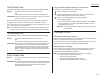
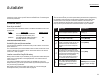
Your fax machine stores up to 78 one-touch numbers using the keys marked 01–78.
Entering or changing a one-touch number
1
Press
MENU
,
A
, [Enter].
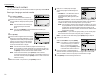
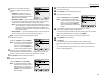
The
LCD
shows the one-touch number list.
2
Select the one-touch key in which you want to
store a number or change a previously stored
number.
Note: You can select the one-touch key by
pressing that key on the control
panel.
Note: You can press [Detail] to see the number which has been pro-
grammed in that one-touch key.
3
Press [Enter].
4
Use the numeric keypad to enter the number
exactly as your machine should dial it, includ-
ing whatever access codes your phone system
requires.(You may want to review “Special
dialling characters,” page 2.1.) The number
can be up to 40 characters in length.
Note: You must enter the fax number to program the one-touch key.
Note: If a fax number is already registered in this one-touch key, the num-
ber is shown on the
LCD
. If you wish to change the fax number, press
the [Clear] to erase it and then enter another number.
Note: If want to erase characters, press [Clear] to erase to the left.
If you want to change just one character in the number, move the cur-
sor to that character, and press [Clear] to erase it.Then re-enter the
character correctly.
5
When the number is as you want it, press [Enter] to store it.
6
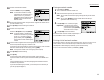
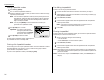
Next, the
LCD
now displays (see right):
You can also program the following three
items:
• Location
ID
— The destination name. If
you enter the name, you can use the
EasyDial directory dialling function (see
page 2.8).
• Alternative number — After all redial attempts to the regular number
fail, your fax machine will dial this alternative number. If the alternative
number also fails,the fax alarm beeps to alert you to a problem.
Note: Your fax holds a maximum of 10 alternative numbers in all, that is,
only 10 speed-dials or one-touch numbers can have the alternative
number.After you have entered the alternative numbers for 10
speed-dials or one-touch numbers, the machine will disable to enter
the alternative number.
• Group number — If you enter the group number, you can use the group
dial transmission function. (See “Using call group,” in page 2.7.)
Note: If you wish to omit these settings,press [Exit] then go to step 16.
7
To enter the Location
ID
:
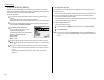
Select the “Location” and press [Enter].
Note: If a Location
ID
is already registered
in this one-touch key, it is shown on
the
LCD
. If you wish to change the
location
ID
, press the [Clear] to erase
it and then enter another location
ID
.
8
Enter the Location
ID
. (Regarding how to
enter the character, see “Entering character” on page 1.14 in General refer-
ence.) A number’s Location
ID
may be up to 24 characters in length.
9
Press [Enter] to save the setting and continue.
Beyond the Basics
2.2