
User Manual
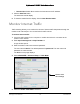
Table Of Contents
- User Manual
- Contents
- 1 Hardware Setup
- 2 Connect to the Network and Access the Modem Router
- 3 Specify Your Internet Settings
- 4 Control Access to the Internet
- 5 Share USB Devices Attached to the Modem Router
- USB Storage Device Requirements
- Connect a USB Storage Device to the Modem Router
- Access a USB Drive Connected to the Modem Router From a Windows Computer
- Map a USB Device to a Windows Network Drive
- Access a USB Storage Device That Is Connected to the Modem Router From a Mac
- Control Access to the USB Storage Device
- Use FTP Within the Network
- View or Change Network Folders on a USB Storage Device
- Add a Network Folder on a USB storage device
- Edit a Network Folder on a USB storage device
- Approve USB Devices
- Access the USB storage device Through the Internet
- Safely Remove a USB storage device
- 6 Share a USB Printer
- 7 Specify Network Settings
- View WAN Settings
- Set Up a Default DMZ Server
- Change the Modem Router’s Device Name
- Change the LAN TCP/IP Settings
- Specify the IP Addresses That the Modem Router Assigns
- Disable the DHCP Server Feature in the Modem Router
- Reserve LAN IP Addresses
- Improve Network Connections With Universal Plug and Play
- Use the WPS Wizard for WiFi Connections
- Specify Basic WiFi Settings
- Change the WiFi Security Option
- Set Up a Guest Network
- Control the Wireless Radios
- Set Up a Wireless Schedule
- Specify WPS Settings
- 8 Manage Your Network
- Change the Admin Password
- Set Up Password Recovery
- Recover the admin Password
- View Modem Router Status
- View Logs of Modem Router Activity
- View Event Logs
- Run the Ping Utility
- Run the Traceroute Utility
- Monitor Internet Traffic
- View Devices Currently on the Network
- Manage the Modem Router Configuration File
- View Wireless Access Points in Your Area
- View or Change the Modem Router Wireless Channel
- Dynamic DNS
- Remote Management
- 9 Specify Internet Port Settings
- 10 Troubleshooting
- A Supplemental Information

Nighthawk AC1900 WiFi Cable Modem Router
Manage Your Network User Manual92
Run the Ping Utility
Ping is an administration utility that tests whether a computer on the network is reachable and
measures the time it takes messages sent from the originating device to reach a destination
computer and return.
To run a ping test:
1. Laun
ch a web browser from a computer or mobile device that is connected to the
modem router network.
2. Enter http://routerlo
gin.net or http://192.168.0.1.
A login window opens.
3. Enter
the modem router user name and password.
The user name is ad
min. The default password is password. The user name and
password are case-sensitive.
The BASIC Home page displays.
4. Select A
DVANCED > Administration > Diagnostics.
In the Utility li
st, Ping is selected by default.
5. Select the Ping Test Parameters IPv4 or IPv6 radio button.
6. S
pecify the following parameters for the ping utility:
•Target. The
IP address of the ping target computer.
• Ping Size. The size (in
bytes) of the ping packet.
• No. of Pings. The n
umber of times to ping the target computer. The maximum
number of pings is 128.
• Ping Interval. The
time between pings.
7. Click the St
art Test button.