
User's Manual

Wireless Broadband Router User Manual
Page 4 of 40
1.4 Overview of The Wireless Broadband Router
The following sections describe the physical characteristics of your router.
1.4.1 Back Panel
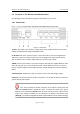
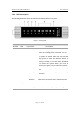
Figure - 1 back panel below shows the Wireless Broadband Router back panel:
Figure - 1 back panel
1 Power: The power socket is where you plug in the power adapter. Please use the power
adapter provided with this wireless broadband router.
2 LAN Ports 1-4: These 4 ports is used to connect the router to your PCs using Ethernet
cables. Any of these four ports can also serve as an uplink port to other network devices,
such as another router or switch, which allows you to extend your network.
3 WAN: Connect your modem to your router using this port with your supplied Ethernet cable.
This is the only port you can use for this procedure. This enables your router to access the
Internet. The port supports 10/100 Mbps as well as straight-through and crossover Ethernet
cables.
4 Default button: Default your router or resets the router to the default login settings.
5 Antenna: The antenna used for wireless connections. You are able to rotate the antenna to
gain the best signal reception.
If the router experiences trouble connecting to the Internet, briefly press and
release the Default button to default the router. To default the router to the factory
defaults, press and hold the Default button for more than five seconds. This clears the
router’s user settings, including User ID, Password, IP Address, and Subnet mask.
(Warning: your original configurations will be replaced with the factory default settings)