
User Manual
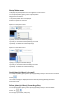

*Note that some interface icons may not be shown as above, as it depends on the features of your
webcam. Please install the webcam driver to enjoy the features.
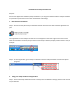
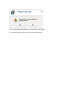
If the webcam driver is not installed, the interface window will be as shown:
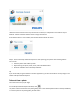
Step 2: Launch the Philips CamSuite Capture to start capturing your photos and recording videos!
You can also
Send the photos and videos by email
Adjust settings for photo, video, mute, and multimedia folders
Know the software version of Philips CamSuite
Tip
If you are already using the webcam in another application, you will not be able to see any image in the
viewer of Philips CamSuite Capture.
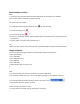
Take and view a photo
1 Aim the camera in a proper angle.
2 In the Philips CamSuite Capture window, click .
» A photo is taken and stored in the photo gallery (also in the selected photo folder on the PC/notebook).
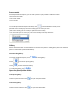
• To view a photo in the photo gallery, double-click it.