
User Manual

Screen mode
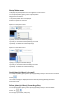
Via Philips CamSuite Capture, you can view a photo or play a video in different modes:
• Normal screen mode
• Full screen mode
• Fit on screen
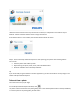
1 In the Philips CamSuite Capture window, click to switch between modes, from
[Normal screen mode] to [Full screen mode] / [Fit on screen] or from
[Full screen mode] / [Fit on screen] to [Normal screen mode] .
» You can select [ Fit on screen] or [ Full screen mode] in the drop down list.
Gallery
Photos and videos taken via the webcam are stored in the photo or video gallery and in the selected
photo or video folder (multimedia folders).
To access the gallery:
1 In Philips CamSuite Capture, click to show gallery.
2 Click to show the photo gallery.
• Click to show the video gallery.
• To hide the gallery, click.
Open the photo/video folder
In the photo gallery:
1 Select a photo and then click to open the photo folder.
In the video gallery:
1 Select a video and then click to open the video folder.