
- LX1200TI Touch Monitor USER'S GUIDE

LX1200TI User’s Guide (020-0512-01A) 19
User Controls
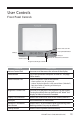
Front Panel Controls
CONTROL FUNCTION
Volume Control Dial Increases and decreases the volume of the display
Power Button Turns the connected computer on and o - see page
20 for details.
Power Indicator LED Shows the power state of the monitor:
• Green: power is on, all systems OK
• Amber: display brightness is fully turned down (“blanked”)
• Red: the monitor is receiving no video input
• O : DC power is o
Brightness Control Dial Increases and decreases the brightness of the display.
Turning the dial all the way clockwise will “blank” the
display to hide information if needed.
Display On/O Button Allows the screen to be shut o for stealthy darkness
Autosync Auto calibration of video mode
Remote PC Shutdown/
Start Button
Allows the PC to be shutdown prior to removing from
docking station. Easy way to reboot PC.
Softkey Button Allows macro keyboard command entry
Volume Control
Power Button
Softkeys
Brightness/Backlight Control
Autosync
Power Indicator LED
Remote PC Shutdown/Start Button
Display On/O Button