
User Manual


o Once completed, please check and be certain that the data you need is fully transferred; these
data if not encrypted are vulnerable at this time.
o You are now ready to reformat the drive with the new set of digital keys that you received.
NOTE: By reformatting the Hawker device now, you will lose all the data that you have
stored in it. However, you had just transferred the data contained into a new temporary
device.
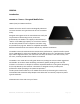
• Insert the new set of digital key tokens you received into the Hawker external drive and
proceed with formatting. Once the key is inserted, the device operation is similar to any
standard external hard drive; therefore, the formatting either for PC under Windows or
Mac is the same. (If you seek help in formatting, please proceed with the formatting
chapter in this manual; you may start with the Table of Contents on page two (2) of this
manual. If you require live assistance, you may call Rocstor tech support toll-free at 888-
877-7716, Ext 8883, or email
support@Rocstor.com.)
Once the drive is formatted with a new digital key, which you received/purchased, it will authenticate
the Hawker device with that key (set of new keys) only. You may dispose of your previous leftover
original digital keys.
You are now ready to transfer (“move”) back the data you had transferred to your computer or from
another external hard drive to the newly formatted Hawker LX. And be sure to remove/delete the
unsecure data that was left in your computer or the external hard drive if you desire.
ROCSTOR | ROCSECURE | HAWKER HX user manual Page | 10