
Installation Instructions

Safety and Certifications
Modifications:
You are cautioned that changes or modifications not expressly approved by the party responsible for compliance could void your authority to
operate the equipment.
FCC Responsible Party: Sagemcom USA
14651 N. Dallas Parkway
Suite 900
Dallas, TX 75254
Phone: 972-674-4100
Radio Frequency Interference Statement
Note: This equipment has been tested and found to comply with the limits for a Class B digital device, pursuant to Part 15 of the FCC Rules.
These limits are designed to provide reasonable protection against harmful interference in a residential installation. This equipment generates,
uses and can radiate radio frequency energy and, if not installed and used in accordance with the instructions, may cause harmful interference
to radio communications. However, there is no guarantee that interference will not occur in a particular installation. If this equipment does cause
harmful interference to radio or television reception, which can be determined by turning the equipment off and on, the user is encouraged to try
to correct the interference by one or more of the following measures:
1. Reorient or relocate the receiving antenna.
2. Increase the separation between the equipment and receiver.
3. Connect the equipment into an outlet on a circuit different from that to which the receiver is connected.
4. Consult the dealer or an experienced radio/TV technician for help.
FCC Radiation Exposure Statement
This equipment complies with FCC radiation exposure limits set forth for an uncontrolled environment. This transmitter must not be co-located
or operating in conjunction with any other antenna or transmitter.
This device produces radio frequency energy in the 2.4GHz and 5GHz spectrum. The antenna must be positioned to keep a minimum distance
of 40cm (1.31ft) from the radiating element to any nearby person.
Package Contents:
The package contains the following items:
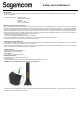
• F@ST 5670V2 residential gateway
• Power adapter
• This safety sheet includes quick guide
Installing This Product:
Connecting your F@ST 5670V2 to your service
provider’s network
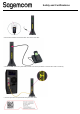
1, Connect optical end wall socket to optical port of CPEas following photo, after a few
Remark: Don't aim the fiber cable at your eyes, risk being burned.
2, Connect the power adaptor DC jack to the product “power” port, and then press the “on/off” button, it will take several minutes to boot up
product, then the power LED will be solid green.