
Navigation Scheduling Guide


9
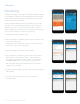
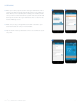
7. When creating a new schedule, you can begin by first copying an
existing schedule. To do this, select the “Copy” option to the right
of that schedule.
8. To create a new schedule from scratch, tap “Create new” at the top.
9. At the first editing screen, you can group days that you want to
have the same time and temperature set points. The default day
grouping is Monday –Friday, and Saturday–Sunday. You can move
the days around by tapping them in the group you want.
(For example, if you want to bring Saturday into the Monday–
Friday grouping, simply tap the unfilled Saturday circle in the
first grouping.)
Note: If you want one seven-day schedule, you’ll be left with an empty day
group. Use the “Delete a Day Group” option to delete that day group.
(If you’re using an Android device, press and hold on “Edit Daily Schedule”
for that empty row to delete it.)
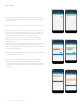
10. After you’re done sorting your day groupings, tap “Edit temperature
settings” to adjust set points.
11. Tap on any set point to adjust the set time and temperature.
Note: You can add more set points by tapping on the “+ Add a New
Setting” button. You can delete any set points by tapping on the “Delete a
Setting” button. (On Android devices, press and hold on any set point to
delete it.)
11
10
7 8
SCHEDULING
Sensi
TM
App | NAVIGATION & SCHEDULING GUIDE 5