
User guide
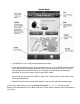

3StepstoSETUPVTag
iPhone4s,5,5sor5c,iPodTouch5,NewiPad,iPadw/RetinaDisplay,iPadMini,only!
VTagBlueSmartAppforAndroidshouldbeavailableMay2014.
OncesetupiscompletegodirectlytoDiscoverytolearntheFindMeandotherfeaturestouse
yourVTag.
EnsureBluetoothisturnedONforyouriPhone/iPad.
(Settings==>General==>Bluetooth==>On)
Step1:InstallVTagBlueSmartApp
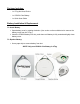
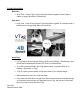
➢ Scan/TakePicofQRCodetoeasilyaccessBlueSmartAppforyouriPhoneor
iPad.OryoumaydownloadBlueSmartAppfromtheiTunesAppStore.
➢ WhenBlueSmartAppiconshowsuponyouriPhoneoriPad,you’reset.
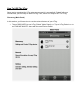
Step2:OpenBlueSmartApp
➢ TouchtheBlueSmartApptoopeniniPhoneoriPad.
Step3:Connecting&PairingVTag
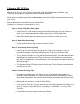
➢ HoldVTagneariPhone/iPad,longpressonVTagConnectbutton(•)over5
secondstoprepareconnectionandpairingtheVTagtoyouriPhone/iPad.
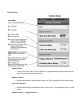
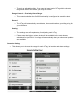
➢ The(•)GreenLEDlightonVTagwillflashandbeeptwice.ThisindicatestheBlue
SmartApphasdiscoveredtheVTag.Atthistime,youshouldseeapromptand
tap“Pair”tocompletetheVTagconnection.(Ifnot,pleasepress"search"buttonin
BlueSmartApp.)
➢ TheflashingGreenLEDlightwillturnoffaftertheVTagisPaired/Connectedwith
youriPhoneoriPad.
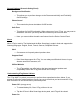
Setup:TroubleShootingTips
➢ IftheBlueSmartAppdoesnot"Discover"theVTagwithinapproximately5+
seconds,checkthebattery.Itiseithernotseatedcorrectlyorthebatteryisdead
andneedsreplacement.GetanewCR2032batteryandrepeatthesetupprocess.
➢ Batterylifeis6monthsto1yearfortheCR2032.
➢ Ifyouneedto"RePair",firstyouneedtousethe"forgetoperation"foriPhoneis5,
5sor5c.Select“ForgetthisDevice”onsetting==>Bluetooth==>VTag.Then
"RePair".
➢ Ifitstilldoesnotwork,pleaserestartyouriPhone.