POR TABLE MP3 PL AYER MAXFIELD MAX P -01 USER'S MANUAL www.maxfield.de maxp01@maxfield.de M-to-Be GmbH Ernst-Gnoß-Straße 5 40219 Düsseldorf Germany MAX P-01 USB MP3 PLAYER CONTENTS ® Maxfield by M-to-Be GmbH Ernst-Gnoß-Straße 5 · D-40219 Düsseldor f ® Maxfield by M-to-Be GmbH · Ernst-Gnoß-Straße 5 · D-40219 Düsseldor f · www.maxfield.
P O R TA B L E M P 3 P L AY E R M A X F I E L D M A X P - 01 Copyright Notices This manual is copyrighted. All rights reserved. This document may not, in whole or part, be copied, reproduced or translated by any means, either mechanically or electronically, without prior consent in writing from M-to-Be GmbH. The information in this manual has been carefully checked and is believed to be accurate. However, M-to-Be GmbH assumes no responsibility for any inaccuracies that may be contained in this manual.
P O R TA B L E M P 3 P L AY E R M A X F I E L D M A X P - 01 TABLE OF CONTENTS Introduction Precautions Operational Notice Features Player Overview and Accessories Description of Buttons Getting Started LCD Display and Setting Menu Play Music Record Voice Play Voice Adjusting the Volume Hold Function Advanced Settings - Setting the Menu - Equalizer Setting - Play Mode Setting - Adjusting the LCD Backlight Time - Adjusting the LCD Contrast - Power Savings - Record Settings 4 4 5 5 6 7 7 8 9 10 10 11 11 11
P O R TA B L E M P 3 P L AY E R M A X F I E L D M A X P - 01 INTRODUCTION PRECAUTIONS Dear Customer, Thank you for purchasing this product. For optimum performance and safety, please read these instructions carefully. Before connecting, operating or adjusting this product, please read the complete instructions carefully. Please keep this manual for future reference. Navigating the User's Manual This User’s Guide is in Adobe Acrobat (.PDF) file format.
P O R TA B L E M P 3 P L AY E R M A X F I E L D M A X P - 01 OPERATIONAL NOTES FEATURES If the unite will not be operated for a prolonged period, remove the batteries to avoid possible damage caused by electrical leakage. WMA & MP3 Playback The MP3 player should be kept away from extreme temperature changes, moisture and dust. Supports WMA/MP3 Format Digital Music Built-in A type USB Connector Download WMA/MP3 music to the player before listening.
POR TABLE MP3 PL AYER MAXFIELD MAX P -01 PLAYER OVERVIEW Stop/Power Off Button Earphone Jack Menu Button Skip Previous Power Button USB Port Cover Skip Next Hold Switch Volume – Volume + ACCESSORIES Bundled CD 1 AAA Battery Stereo Earphones USB Extension Cable Neck Strap Warranty Card Quick Start Guide QUICK S TAR T GUIDE MAX P-01 USB MP3 PLAYER CONTENTS ® Maxfield by M-to-Be GmbH · Ernst-Gnoß-Straße 5 · D-40219 Düsseldor f · www.maxfield.
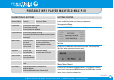
P O R TA B L E M P 3 P L AY E R M A X F I E L D M A X P - 01 DESCRIPTION OF BUTTONS GETTING STARTED Button/Switch Function Function in Menu Play/Pause Press to turn on the player. Press to play one song. Press to pause the playback. Insert one AAA size battery into battery compartment. Turning on the Player Press the PLAY/PAUSE button to turn on the player. Stop/Power Off Press to stop playing one song. Press and hold until the shut down bar has finished turning off.
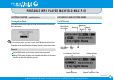
P O R TA B L E M P 3 P L AY E R M A X F I E L D M A X P - 01 GETTING STARTED – continuation LCD DISPLAY AND SETTING MENU Turning off the Player The LCD Display Press and hold the STOP button for a few seconds until the Shut Down Bar has finished. To turn off the player, you have to press the STOP button until the Shut Down Bar has finished. Otherwise the player returns to the previous status. Remark: Set the HOLD switch to the release position before operation.
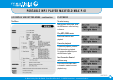
P O R TA B L E M P 3 P L AY E R M A X F I E L D M A X P - 01 LCD DISPLAY AND SETTING MENU – continuation PLAY MUSIC The Menu To select a song After you turn on the player, press the SKIP button to select one song to listen to. Play MP3/WMA music Press PLAY button to start playback. Pause the playback To pause the playback, press the PLAY button during playback. To continue the playback, press the PLAY button again.
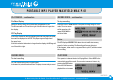
P O R TA B L E M P 3 P L AY E R M A X F I E L D M A X P - 01 PLAY MUSIC – continuation RECORD VOICE – continuation File Name Display To stop recording When you select a song, the file name will be displayed on LCD. The file name will scroll from left to right if the file name is longer than the display. Press the STOP or MENU button to stop the recording and go to voice mode. The voice memo will be saved as a file named VXXX.WAV in the Voice folder.
P O R TA B L E M P 3 P L AY E R M A X F I E L D M A X P - 01 ADJUSTING THE VOLUME ADVANCED SETTINGS Press the +/– buttons on the player to adjust the volume. Setting the Menu Note: Press the button briefly to adjust volume level by level. Press and hold the button to adjust continuously. Press the MENU button to enter the Menu list. Press the SKIP button and select Settings. Press the MENU button to enter Settings. There are several advanced setting options.
P O R TA B L E M P 3 P L AY E R M A X F I E L D M A X P - 01 ADVANCED SETTINGS – continuation Play Mode Setting Power Saving In the Settings list, select Play Mode and enter. Press the SKIP button to select a play mode. In the Settings list, select Power Savings and enter. Press the SKIP button to select the period of time before the player automatically turns off. Adjusting the LCD Backlight Time Select the backlight time and press Menu to apply.
P O R TA B L E M P 3 P L AY E R M A X F I E L D M A X P - 01 ERASING FILES If you do not want to erase the file, press the MENU button. The next file will be listed on the screen and you will be asked again if you want to erase it. Warning: You cannot recover a file once it has been erased. Step 1 Stop any playback or recording functions before you start to erase files. Step 2 Press the MENU button to enter the menu. Select "Erase Files" and enter. Two options will be displayed on the screen.
P O R TA B L E M P 3 P L AY E R M A X F I E L D M A X P - 01 ABOUT THE UNIT SYSTEM REQUIREMENTS Select About in the menu list and enter. Pentium 133MHz or higher Windows 98/ME/2000/XP Mac OS X (support ver.10.2.6 and above) 20MB of available hard drive space CD-ROM drive (double speed or faster) Information about the firmware, built-in memory capacity and free memory will be displayed. Press any key to exit the menu list screen. During normal operation, the player may shut down in certain situations e.
P O R TA B L E M P 3 P L AY E R M A X F I E L D M A X P - 01 PC DRIVER AND UTILITY INSTALLATION Make sure that you first start the software setup on the bundled CD before you connect your player with the USB port! Connecting before setting up the driver device will prompt the message "Add New Hardware Wizard" for Windows 98/98SE. The player driver and utility cannot complete the setup using the "Add New Hardware Wizard"! 1.
P O R TA B L E M P 3 P L AY E R M A X F I E L D M A X P - 01 USB CONNECTION SENDING AND DELETING FILES BY DRAG AND DROP You are able to transmit files through the USB port of your PC. The removable disk icon displayed in the "My Computer" window indicates the memory capacity of the player. 1. Make sure your PC supports USB devices and that you have installed the driver (Windows98/98SE). 2. Turn your player off if it is on.
P O R TA B L E M P 3 P L AY E R M A X F I E L D M A X P - 01 TO UNPLUG THE PLAYER TO OPEN THE SOFTWARE UTILITY Windows 98 / 98SE When the driver installation has been completed, the software utility will be installed in your PC. While the USB port is busy, the LCD will display READING and/or WRITING. When the transfer has finished, the LCD will display READY and you can You can then use the utility to upgrade the unit. then safely disconnect the player.
P O R TA B L E M P 3 P L AY E R M A X F I E L D M A X P - 01 HOW TO FORMAT THE PLAYER select "FAT" HOW TO UPGRADE THE FIRMWARE You can format your player using the Windows Format tool. Please use the setting "FAT", not "FAT 32". Otherwise the player would not be able to function! The firmware in the player can be upgraded by using the Player Update utility running on your PC.
P O R TA B L E M P 3 P L AY E R M A X F I E L D M A X P - 01 IF THE PLAYER DOES NOT WORK ... If the player does not work for any reason, remove the battery and reinsert it 3 seconds later, or replace it with a new battery. Occasionally, the player will not work because the firmware has been accidentally corrupted. To solve this problem, please refresh the firmware. 1. Disconnect the player if it is already connected. 2. Turn the player off, if it is on.
P O R TA B L E M P 3 P L AY E R M A X F I E L D M A X P - 01 FAQ – FREQUENTLY ASKED QUESTIONS 1. Why am I unable to install the installation software on my operating system? Please note that Windows95 is unable to support USB interface properly. Please upgrade your system to Windows98 (Version 2.0, 4.10.2222 A), 2000, ME, or XP. Please note that there is no driver required for PC running Windows2000, ME, and XP (Plug and Play).
P O R TA B L E M P 3 P L AY E R M A X F I E L D M A X P - 01 PRODUCT SPECIFICATIONS Size (W x H x D) (approximation) Processor Memory Audio Playback about 29 x 91 x 17 mm Internal Memory 128MB No Memory Expansion Slot Interface 65 MIPS DSP Windows Media Audio (WMA) decoding MPEG Audio Layer 3 (MP3) decoding Voice Recording IMA-ADPCM encoding About 8 hours recording at 128MB memory (using default setting) USB Rev. 1.