
User Manual


4422-954-85011_582-Trulifi Controller 6800 Controller User Manual
Configuration of SSH
Introduction to SSH
The LiFi Controller runs the SSH client software. After
successful authentication with the SSH server, the SSH
client enables a secure connection to the LiFi command
line application running in the Life Controller system.
When a secure connection is established with the remote
server running on the LiFi Controller system, user can be
able to retrieve or modify various Trulifi parameters
exposed through the LiFI MIB.
Procedure outlined in the sections below, uses the
OpenSSH client software available in Windows operating
system. OpenSSH is the open-source version of the
Secure Shell (SSH) tools available in Windows 10 and
Windows Server 2019. If the OpenSSH Client is not
available in Windows 10, it can be installed as separately
installable components in Windows Server 2019 and
Windows 10 1809.
Steps described are to be performed irrespective of the
user’s operating system. The steps described below uses
the OpenSSH client software available in the Windows
operation System. These steps are very similar to the SSH
client implementations available in the other operating
systems.
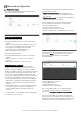
Select
System > SSH
to enter/update the SSH keys
RSA key pair generation.
Secure connection to the LiFi Command Line application
uses public key authentication available in SSH. This
method of authentication uses public-key/private-key
pairs to drive the authentication. Public key
authentication is a way of logging into an SSH account
using a cryptographic key rather than a password. In case
no SSA keys are available, these need to be generated.
Generate the key pair on the machine where the SSH
client is running. With OpenSSH on Windows OS, an SSH
key is created using ssh-keygen. This step generates a
new key pair.
Generate the public\private RSA key pair as described
below.
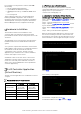
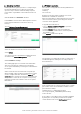
Open the Windows command prompt or Windows power
shell. In the simplest form, just run the command ssh-
keygen with the following command:
C:\ssh-keygen.exe:
The key files are usually stored in the ~/.ssh directory.
Once an SSH key has been created, copy the rsa key pair
from the file where the key pair is stored. If the default
location is used to store the key pair, below file contains
the key pair.
C:/Users/<user name>/.ssh/id_rsa
SSH key upload
To provision access without requiring a password for
Secure shell to the command line application, SSH key
generated as outlined in chapter 8.2, is required to be
installed on the SSH server as an authorized key. Once
the key has been authorized for SSH, it grants access to
the SSH server without a password. This facilitates
automated, password less logins and single sign-on using
the SSH protocol.
To copy the generated SSH key, Login into the below URL
using the web browser.
http://trulifi-controller.local/login
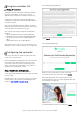
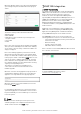
Select
System > SSH
to enter the generated SSH keys
Enter or paste the rsa key pair in the New SSH key dialog
box and press upload. When the key has been
successfully uploaded, it shows the status: “
Successfully
saved new SSH key
”.