
User Manual


© 2021 Signify Holding. All rights reserved. The information provided herein is subject to change, without
notice. Signify does not give any representation or warranty as to the accuracy or completeness of the
information included herein and shall not be liable for any action in reliance thereon. The information
presented in this document is not intended as any commercial offer and does not form part of any
quotation or contract, unless otherwise agreed by Signify. All trademarks are owned by Signify Holding or
their respective owners.
422-954-85011_582-Trulifi Controller 6800 Controller User Manual
SSH Terminal
To connect to an SSH server, OpenSSH client software
needs to be used. On a Windows-based operating system,
a OpenSSH client can be invoked from Window command
prompt or Windows Powershell. To connect to an SSH
server from the Microsoft Windows OS, type the following
command into the Windows command prompt:
ssh trulifi@trulifi-controller.local
On successful completion of this command, the client will
connect to the SSH server running on the Li-Fi controller.
After successful connection to the SSH server, the SSH
client will be connected to the LiFi CommandLine
application and the command line application will present
the user its command prompt.
The LiFi command Line application provides set and get
commands to retrieve or modify an MIB parameter.
Chapter 8.5 describe the commands supported by the
LiFi command line application.
Command line utilities
The following commands supported:
•
Help
•
Get
•
Set
•
Exit
8.5.1 HELP command
The “
Help command
” can be used to see the list of
commands supported and what each command can do.
To invoke the “
help
” command, type:
“ help ”
in the
command line.
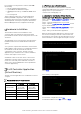
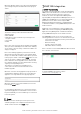
Below is the screenshot of the Help command.
GET command
The “
Get command
” can be used to retrieve the value of
a given MIB parameter from the LiFi controller.
For the list of MIB parameters supported, refer to the
MIB parameter user guide described in the related
documents section.
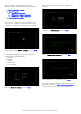
The format of the “
get
“ command is:
get --name=<Parameter Name> {--device=<MAC
Address>} {--index=index identifier}
Where:
-
Parameter Name
: Mandatory parameter. Only
parameters listed in the Trulifi MIB-Guide are
accepted
-
Device
: Optional Parameter. MAC-Address of the
device from which the specified parameter is
requested. Can be found either on the device, or a list
of all MAC addresses in the LiFi-Network can be
requested by using the following command:
get --
name=lifiModemEthernetInterfaceMACAddress
-
Index
: Optional. Refers to the interface of a specific
parameter, e.g. one of the two ethernet interfaces, or
a specific NTP time server. Described in more detail in
the Trulifi MIB-Guide.
8.6.1 SET command
The “
Set command
” can be used to set the value of a
given MIB parameter. For the detailed list of MIB
parameters, refer to the Trulifi MIB-Guide.
The format of the “
set
“ command is:
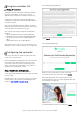
set --name=<Parameter Name> {--device=<MAC
Address>} {--index=index identifier} --value=<value>
Where:
-
Parameter Name
: Mandatory parameter. Only
parameters listed in the Trulifi MIB-Guide are
accepted
-
Device
: Optional Parameter. MAC-Address of the
device from which the specified parameter is
requested. Can be found either on the device, or a list
of all MAC addresses in the LiFi-Network can be
requested by using the following command:
get --
name=lifiModemEthernetInterfaceMACAddress
. If
not defined, parameter will be set for all devices
-
Index
: Optional. Refers to the interface of a specific
parameter, e.g. one of the two ethernet interfaces, or
a specific NTP time server. Described in more detail in
the Trulifi MIB-Guide. If not defined, value will be set
for all indexes of the specified parameter.
-
Value
: Mandatory. Acceptable values are dependent
on the data type of a specific parameter. More details
can be found in the Trulifi MIB-Guide
8.6.2 EXIT command
The “
Exit command
” is used to close the application and
terminate the SSH connection.
Type : “
exit
” and hit enter.